










110
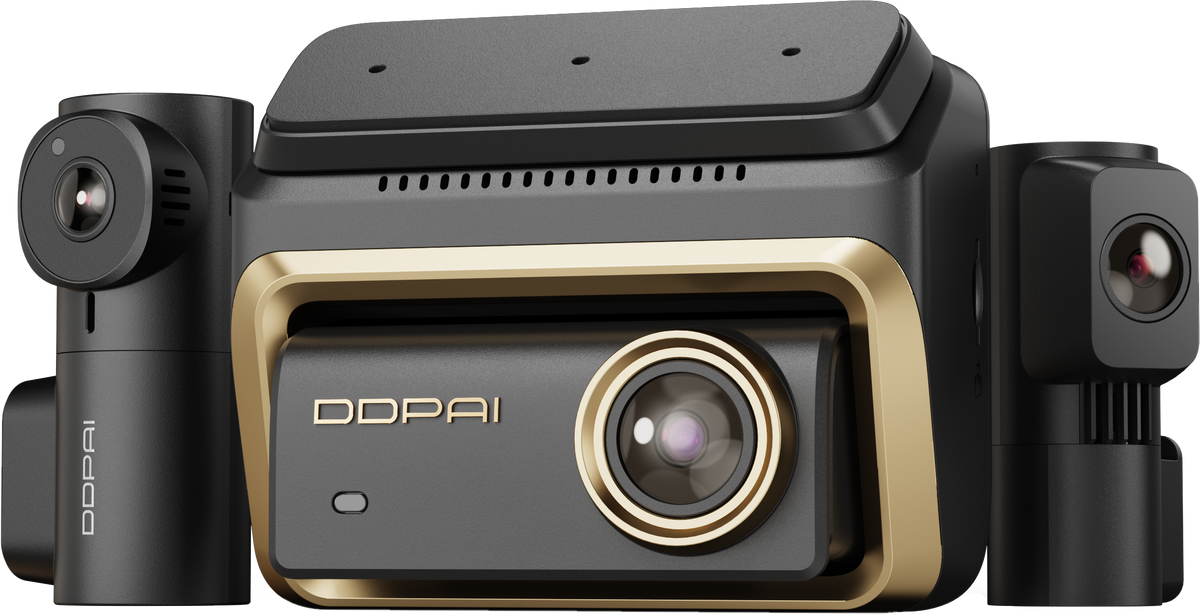
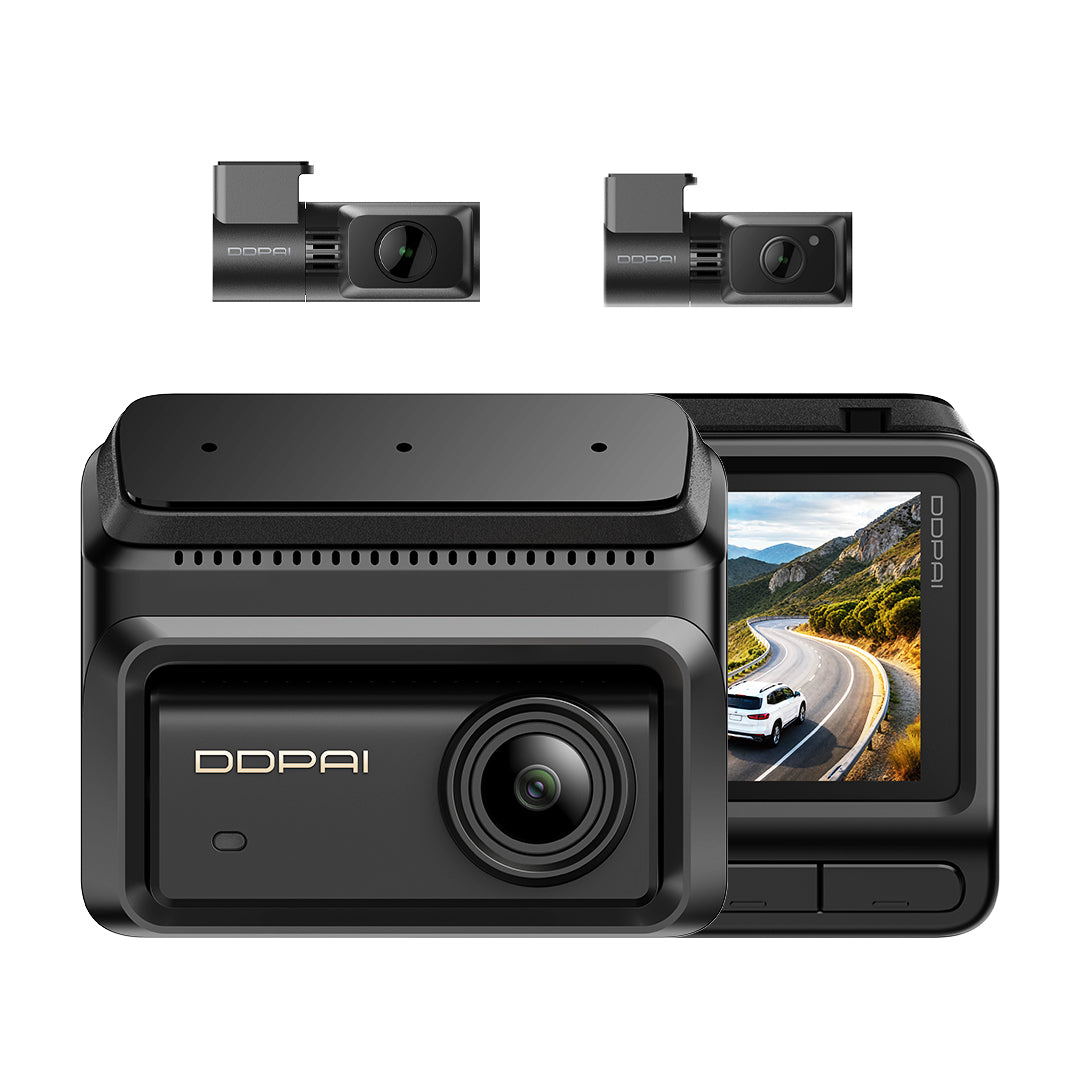
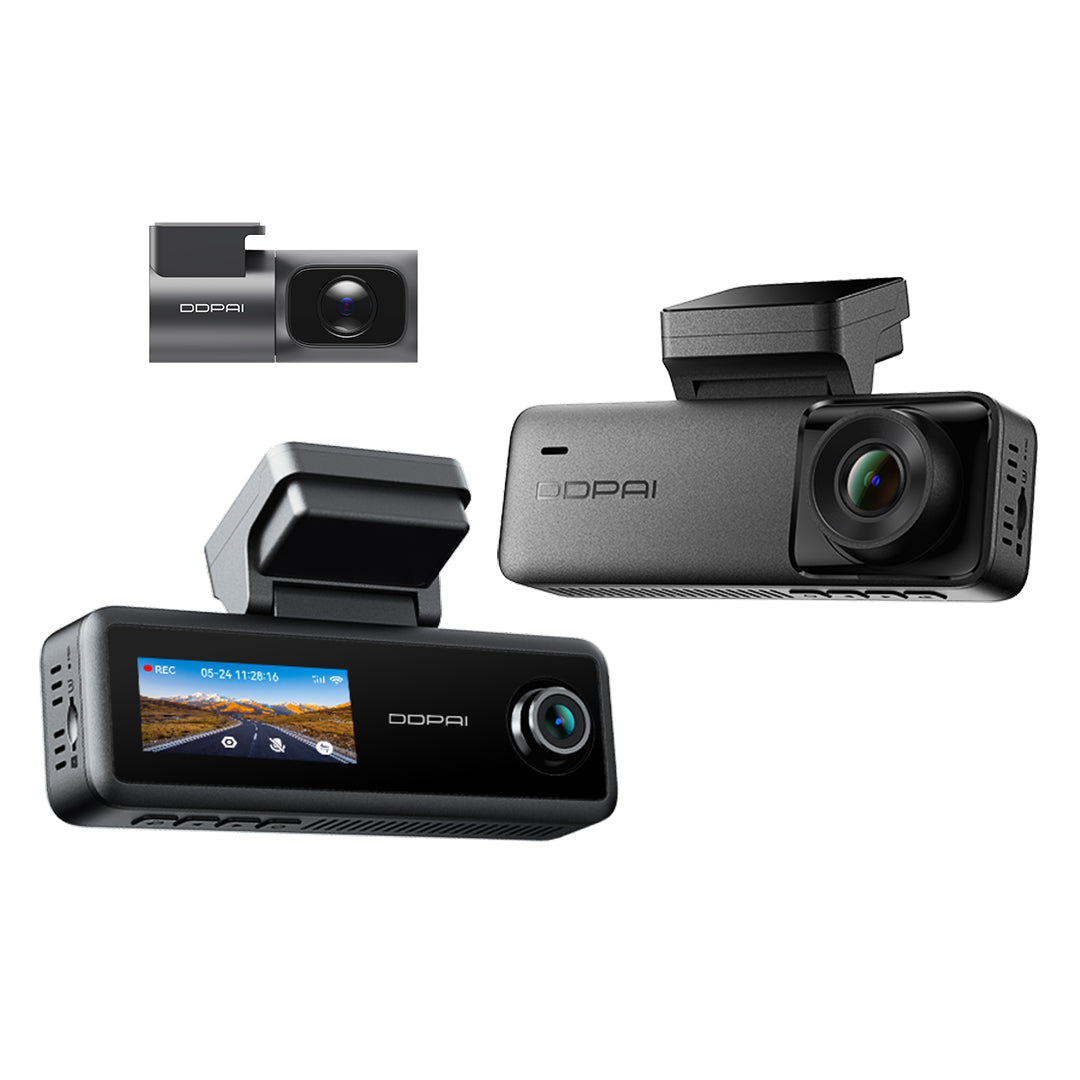
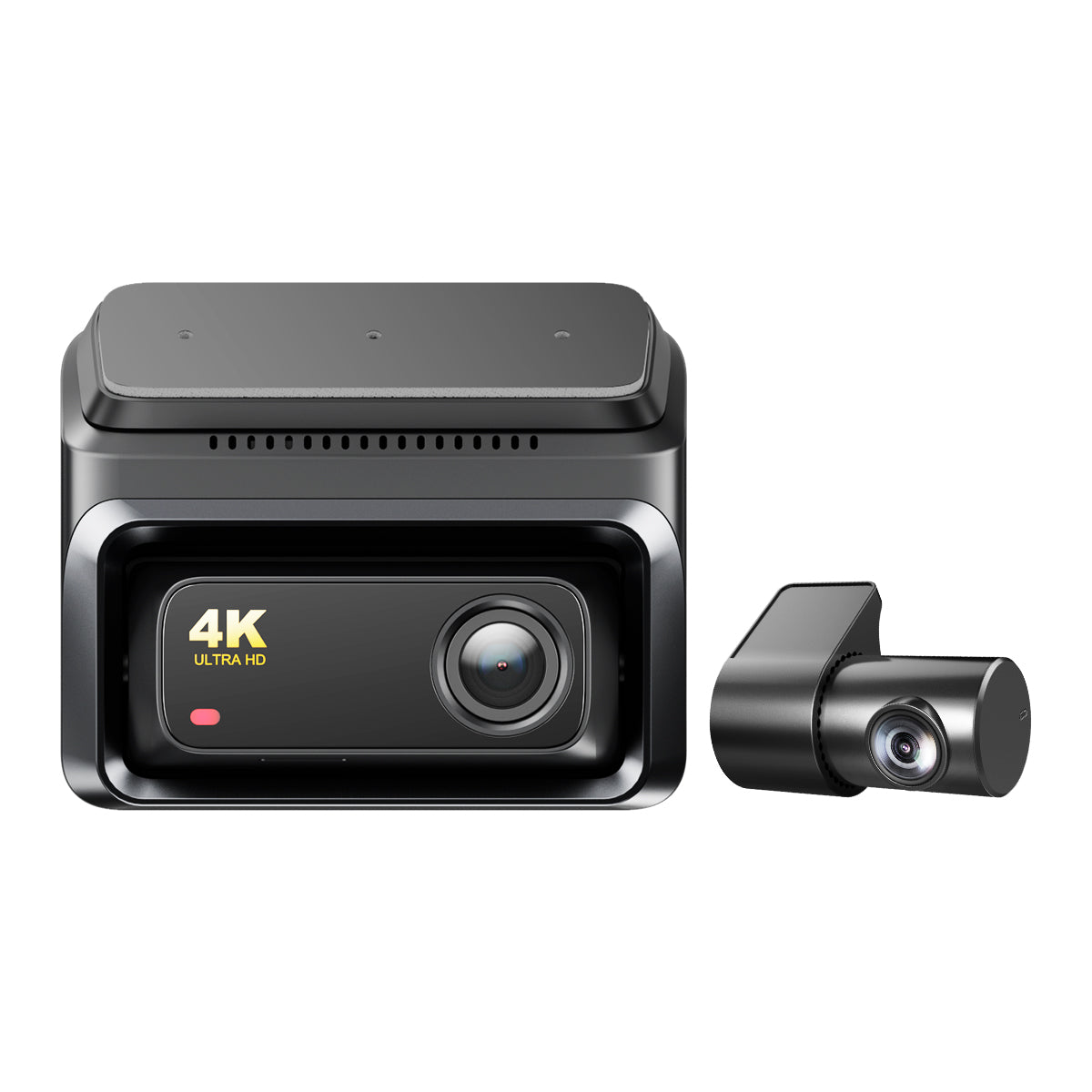
N5 Dual 2026 4K Dash Cam
Key Features
• 4K + 1080P Dual Channel
4k front cam and 1080P rear cam with 140° wide-view angle lens
• Radar Parking Mode
High-Precision & Efficient monitoring with minimal power (5mW)
• 4G Connectivity
Real-time monitoring and data transfer with 4G connectivity, keeping you connected on the go
• AI Motion Detection
Identifies and records repeat visitors and detects events such as scratches
• 5GHz Wi-Fi 6 Fast Transfer
Connects instantly and transfers videos in seconds for faster preview, playback, and sharing


N5 Dual 2026 4K Dash Cam
Sale price$199.00
Regular price$329.00
See It in Action
Features
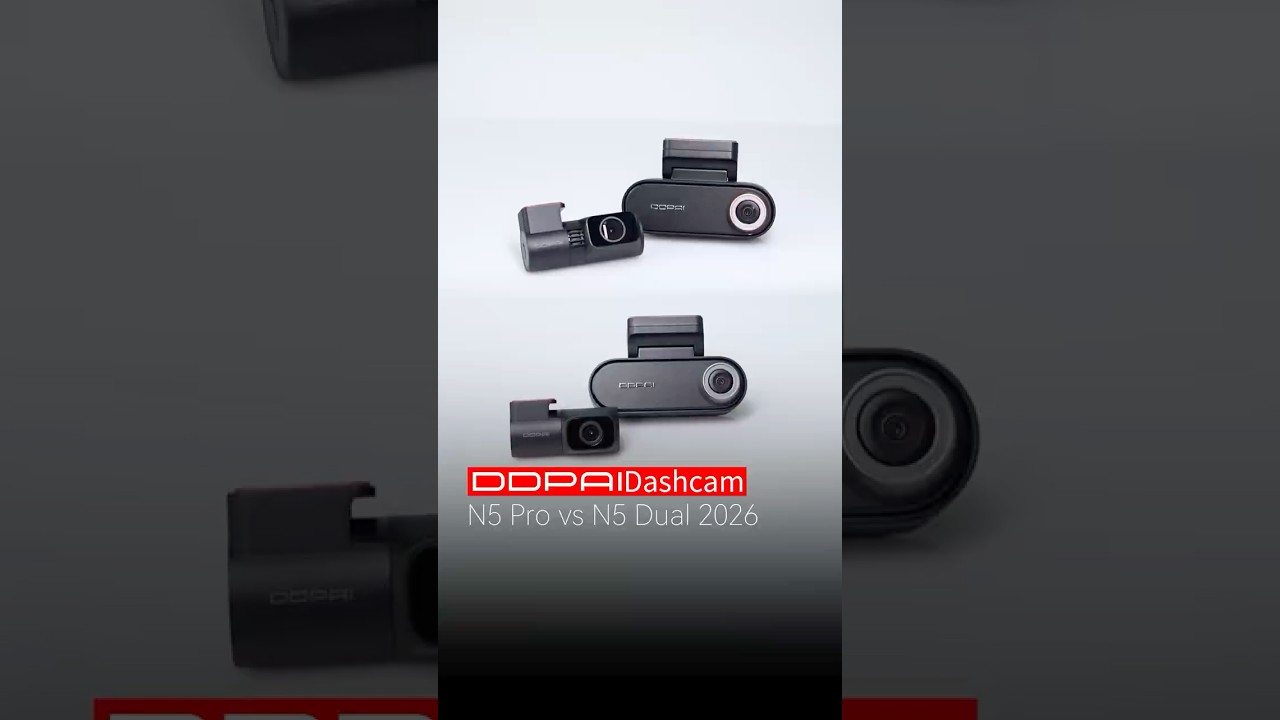
N5 Dual 2026 vs. N5 Pro: Which 4K Dashcam Should You Choose?

Smarter. Clearer. Always Connected.

4K+ 1080P Dual Channel
N5 Dual 2026 captures every drive in 4K HDR front + 1080P rear, delivering clear coverage day or night.

AI Base Radar Motion Detection
The AI millimeter-wave radar monitors vehicle’s surroundings. Upon detection, the camera automatically records, saving 10 seconds of video.

AI ISP Enhanced NightVis 2.0
The N5 Dual 2026 delivers brighter, clearer night vision for parking monitoring—even in the darkest environments.

Smart Voice Control
Capture photos hands-free with simple voice commands, keeping you focused on the road while capturing important moments effortlessly.

4G Connected. Always Protected.
Remote live view, collision alerts, geofencing, and cloud backup—all from your phone, anywhere. Because peace of mind shouldn't stop when you walk away.

Up to 512GB MicroSD Storage
Store more footage with up to 512GB capacity, giving you extended recording time and easy access to important moments.

Wi-Fi 6 High-Speed Transfer
Download and share 4K footage in seconds with faster speeds, higher bandwidth, and less interference.

4K+ 1080P Dual Channel
N5 Dual 2026 captures every drive in 4K HDR front + 1080P rear, delivering clear coverage day or night.

AI Base Radar Motion Detection
The AI millimeter-wave radar monitors vehicle’s surroundings. Upon detection, the camera automatically records, saving 10 seconds of video.

AI ISP Enhanced NightVis 2.0
The N5 Dual 2026 delivers brighter, clearer night vision for parking monitoring—even in the darkest environments.

Smart Voice Control
Capture photos hands-free with simple voice commands, keeping you focused on the road while capturing important moments effortlessly.

4G Connected. Always Protected.
Remote live view, collision alerts, geofencing, and cloud backup—all from your phone, anywhere. Because peace of mind shouldn't stop when you walk away.

Up to 512GB MicroSD Storage
Store more footage with up to 512GB capacity, giving you extended recording time and easy access to important moments.

Wi-Fi 6 High-Speed Transfer
Download and share 4K footage in seconds with faster speeds, higher bandwidth, and less interference.
Built for Every Drive
From everyday drives to unexpected moments, N5 dual 2026 is built to keep you covered wherever the road takes you, and give you peace of mind on every drive.


Choose Your N5 Dual 2026 Setup
Choose the coverage and protection that fit the way you drive—from essential recording to smart parking and 4G connectivity.


What's in the Box.

N5 Dual 2026
1Front Camera
2Rear Camera
3Car Charger
46m Power Cable (Rear)
53.5m Power Cable (Front)
6Pry Tool
7User Guide
83M Adhesive
9Electrostatic Sticker

N5 Dual 2026 + Hardwire Kit
1Front Camera
2Rear Camera
3IPS Hardwire Kit
46m Power Cable (Rear)
53.5m Power Cable (Front)
6Car Charger
7Pry Tool
8User Guide
93M Adhesive
10Electrostatic Sticker

N5 Dual 2026 4G
1Front Camera
2Rear Camera
34G Module
4IPS Hardwire Kit
56m Power Cable (Rear)
63.5m Power Cable (Front)
7Car Charger
8Pry Tool
9User Guide
103M Adhesive
11Electrostatic Sticker

N5 Dual 2026 + Radar Accessory
1Front Camera
2Rear Camera
34G Module
4Radar Accessory
5IPS Hardwire Kit
66m Power Cable (Rear)
73.5m Power Cable (Front)
8 Car Charger
9Pry Tool
10User Guide
113M Adhesive
12Electrostatic Sticker
Which is the Best for You?
${ getProductBriefDescription(values[0]) }
${ getProductPrice(0) }
${ formatMoney(variantsCurrent[0] && variantsCurrent[0].compare_at_price) }
${ getProductBriefDescription(values[1]) }
${ getProductPrice(1) }
${ formatMoney(variantsCurrent[1] && variantsCurrent[1].compare_at_price) }
${ getProductBriefDescription(values[2]) }
${ getProductPrice(2) }
${ formatMoney(variantsCurrent[2] && variantsCurrent[2].compare_at_price) }
General
Camera
Video Resolution
Video Resolution
Video Resolution
HDR
HDR
HDR
Field of View
Field of View
Field of View
Aperture
Aperture
Aperture
Video Encoding
Video Encoding
Video Encoding
Video Format
Video Format
Video Format
IMU
IMU
IMU
Features
4G Connectivity
4G Connectivity
4G Connectivity
Built-in GPS
Built-in GPS
Built-in GPS
APP Control
APP Control
APP Control
Parking Surveillance
Parking Surveillance
Parking Surveillance
Wi-Fi & Bluetooth
Wi-Fi & Bluetooth
Wi-Fi & Bluetooth
Storage
Storage
Storage
Voice Control
Voice Control
Voice Control
GNSS
GNSS
GNSS
ADAS
ADAS
ADAS
General
Product Dimension
Product Dimension
Product Dimension
Weight (Front)
Weight (Front)
Weight (Front)
Display Screen
Display Screen
Display Screen
Display Screen Resolution
Display Screen Resolution
Display Screen Resolution
Others
Microphone
Microphone
Microphone
Speaker
Speaker
Speaker
Supercapacitor
Supercapacitor
Supercapacitor
Operating Temperature
Operating Temperature
Operating Temperature
Storage Temperature
Storage Temperature
Storage Temperature
Power Interface
Power Interface
Power Interface
Check out suitable Cam Parts
 4K + 1080P
4K+1080PRadar Parking Monitoring
N5 Dual 2026
Smarter. Clearer. Always Connected.

 4K Dash Cam

Customer Reviews
Overall rating: 4.8 / 5 from 117 reviews.

Top tier performance.

Ya hace varios años que confío en ustedes aún no la e Istalado, pero seguro k va genial ....

Good quality dashcam — I’m satisfied with the purchase. However, I would have preferred the hardwire kit to have straight connectors instead of L-shaped ones, as most fuse boxes in modern cars have limited space. Additionally, the wires on the fuse side of the hardwire kit could be thicker and more robust, as they currently seem a bit fragile.

All went ok in my jeep renegade my2018. The fuse are the blue one for the intelligent hardwire kit, if you are wondering. F94 (cigarette lighter) for acc, F36 (uconnect) for vcc (always on). Both are 15A fuse so no need to make strane arrangements, plug and play. Hope this helps someone, if useful, please make a nice action for someone else this week and dont stop the chain of love 😀

Good

work great

Work great

Amazing Dashcam .. with amazing customer support

Easy to install especially with the plug and play OBD. Radar could be better to lower the sensitivity even more. Still good valve and good quality video.

Качественный товар на долгие годы.

Регистратор ещё не установлен но выглядит качественно да и в Ютубе есть много тестов, сравнений этого регистратора

Thank you for your attention and careful cargo shipment. You should be in every vehicle. DDPAI

the product is very nice and works

My best purchase

Great dashboard camera! Works great. Shoots video and photos in high resolution.

It's a nice dashcam.

Good quality and easy for setup

very fast shipment, but seems like the box was sealed, but it was sealed when one of the sides was torn(as in the attached pictures). i had DDPAI mini 2(1440P), in term of video quality on smartphone screen it seems like the quality is very close, but it have the option that the zoom-in video a bit more clear on the N5,G meter not works(IDK if it should) GPS and speed also the height and distance tracker works good. all AI and ui overlay are good, but unfortunately i can't just download it with the overlay(at least i cant find a way to export it with the overlay). in overall, as always, goods product, the price is OK also, works well. the only cons are the the record is about 25FPS(and not 30 of more) and it still using an older sensor.

Love it installing was fun

Powinny być czarne taśmy do mocowania tak mocno je widać.

Türkiye'ye çok hızlı şekilde ulaştı gümrük vergisi ödemedim ddpai'ya çok teşekkür ederim

Happy Buyer here. i owned previously a ddpai N1 and just upgraded to this N5 dual dashcam

Ürün çok kaliteli tavsiye ederim hızlı kargo geldi satıcı hızlı dönüş sağladı teşekkür ederim.

Easy to fix. Takes minimal space. Used it for only a few hours of parking and ok with it.

It works very well and I am happy with the product.. Although I had to install it differently than stated. Rada works fine again.

It’s fantastic and very good performance with quality 4k video records. Very helpful during on the roads.
Top !
I’ve been using ddpai since 2023 and it has been amazing. So I definitely bought more for my family. Thank you for being awesome!
i love the product and it arrive within 1 week from chaina to kuwait <3
!
Bin noch in der Testphase. Bis jetzt alles super.
Выглядит все хорошо. Но пока не подключил.
All good thanks
Good dash cam good service thanks
Just as expected.
Great communication and excellent customer experience. Item received on time and I love it.
Easy to install, clear instructions, glad to be protected!
Very good
Camera appears to be getting very hot.
The cameras are great and the installation was as expected. Two issues preventing a 5-stars score: 1) the rear camera feed cannot be flipped horizontally in the app settings (to fix up-side-down video). You have to flip the camera instead. Therefore it forces you to have the power cord exiting the camera on the left side of the vehicle. Could be an esthetic issue for some installations with only one direction available to route the wires. 2) the camera keeps reminding me of inserting a SD card, at each start up, despite having a 32Gb internal storage. This is annoying. I was counting on this feature so I wouldn't have to buy a SD card. This reminder message cannot be turned off in the settings.
Frequently Asked Questions
1. How to format the memory card?
Format the memory card (Method 1): After the mobile phone successfully connects to the device, enter the “Camera Settings” interface, tap“Storage Management”and you can select to format the memory card.
Format the memory card (Method 2): Remove the memory card, insert it into the card reader, and connect it to the computer. Find the memory card drive, Right-click and select “Format”. The fat32 option will appear and select “Format” (uncheck “Quick Format”).
2. How to export the driving video in the memory card?
Use the card reader to connect the memory card with the computer, and you can export the driving video.
3. What is the Wi-Fi password of the Dash Cam?
The default Wi-Fi password of the device is “1234567890”. You can change the password, go to “Camera Settings” > “Set WIFI Password” after connecting the app with your mobile phone.
4. Can I change the Wi-Fi password of the Dash Cam?
It can be modified. The specific modification method is to enter “Device Settings” interface after the Dash Cam is connected to the mobile phone, select “Device Wi-Fi Password” after entering, enter a new password, confirm it, and save it.
5. How to reset the Dash Cam?
In case of abnormal state, press the function button for approximately 6 seconds to reset the device. After successful reset, the device will automatically restart.
6. What if I forget the Wi-Fi password?
Press the function button for approximately 6 seconds to reset the device, and then connect the Dash Cam again (default password: 1234567890).
7. Why can’t I see the image of my rear camera?
Please ensure that the rear camera cable is firmly connected to the front camera, and observe whether the rear camera indicator light is solid green. Then enter the preview interface of the app and tap to switch to view the image of rear camera.
Show More