









19
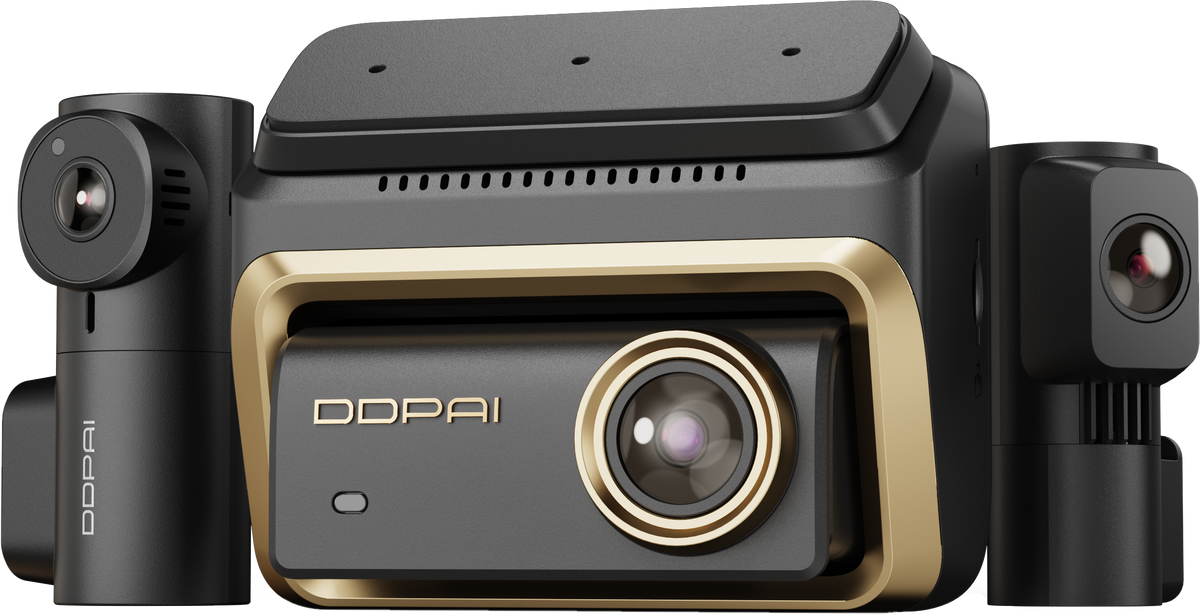
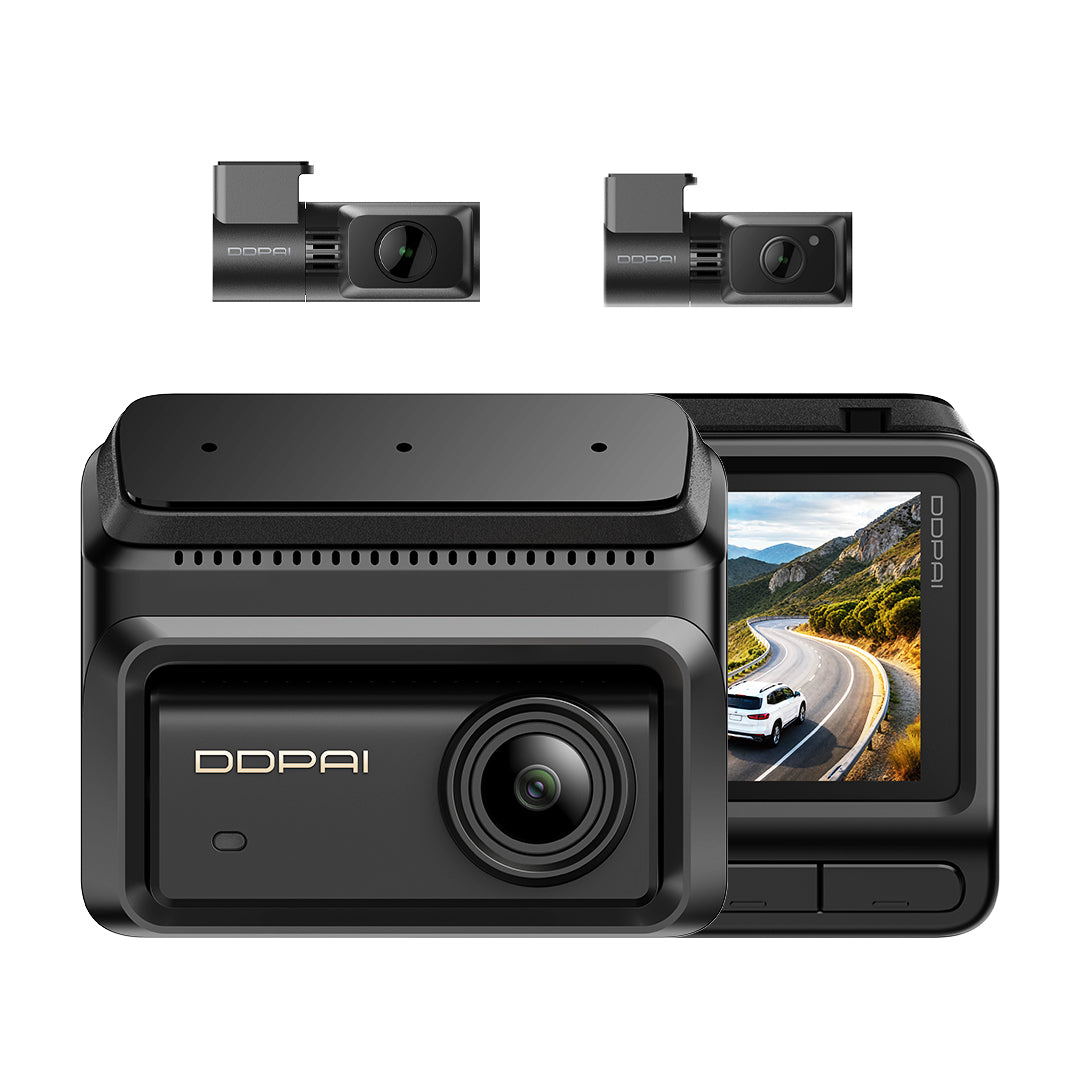
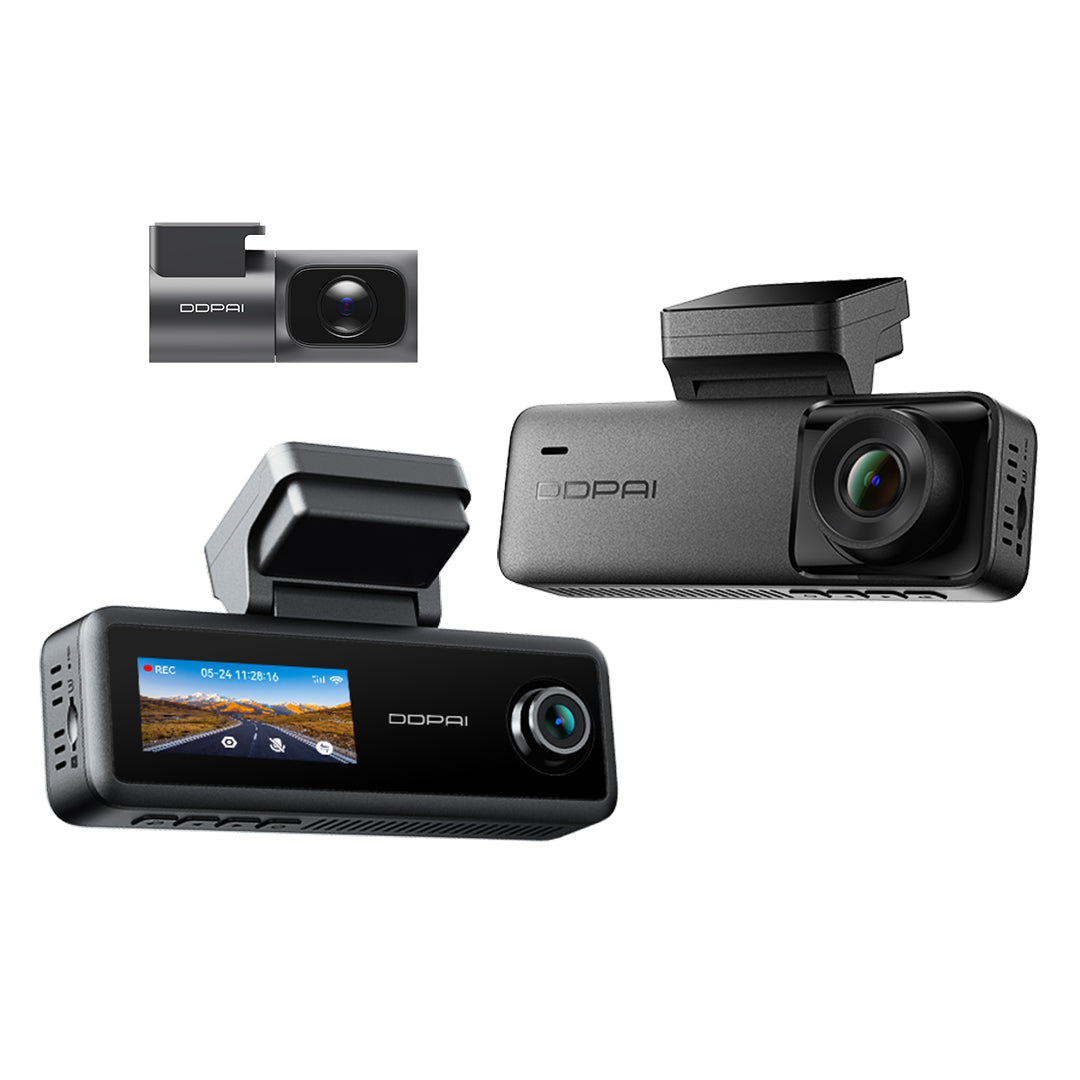
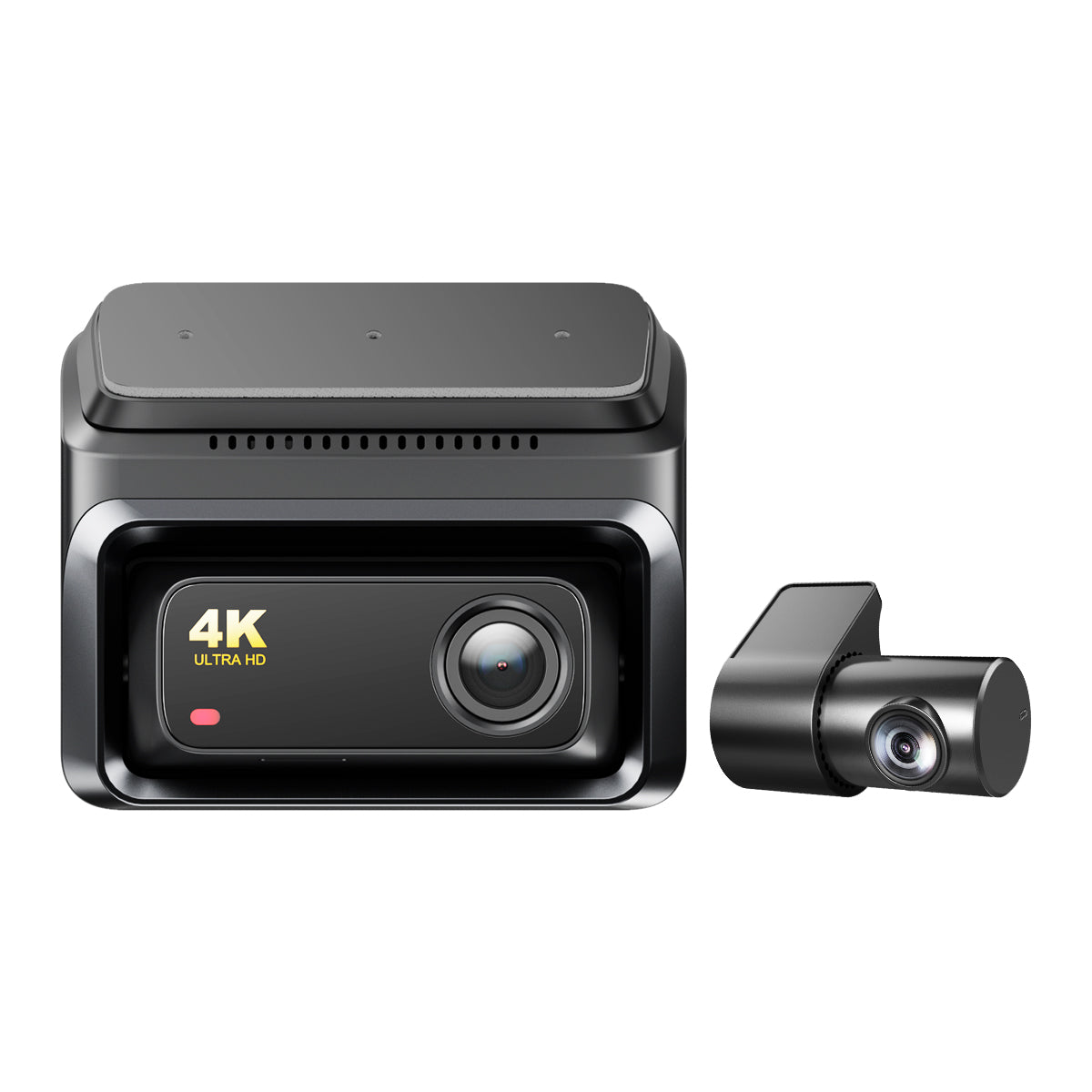
Z60 Pro 4K Dash Cam
Key Features
• Dual SONY STARVIS 2 & HDR
Front and rear cameras with SONY sensors and HDR for clear, detailed footage in all conditions.
• Support 4K+2K+1080P 3CH
Wirelessly connect multiple devices for comprehensive, multi-angle recording.
• 3K 60fps High-Frame Rate
Smooth, detailed video even during high-speed driving.
• 4G Connectivity
Real-time monitoring and data transfer with 4G connectivity, keeping you connected on the go.
• D2save 2.0 Dual-Storage System
Securely store extensive video footage with the dual-memory system, preventing data loss.
• 24/7 Parking Monitoring
Provides continuous 24-hour surveillance to keep your vehicle safe at all times.


Z60 Pro 4K Dash Cam
Sale price$189.00
Regular price$329.00
See It in Action
Unboxing
Features
Installation
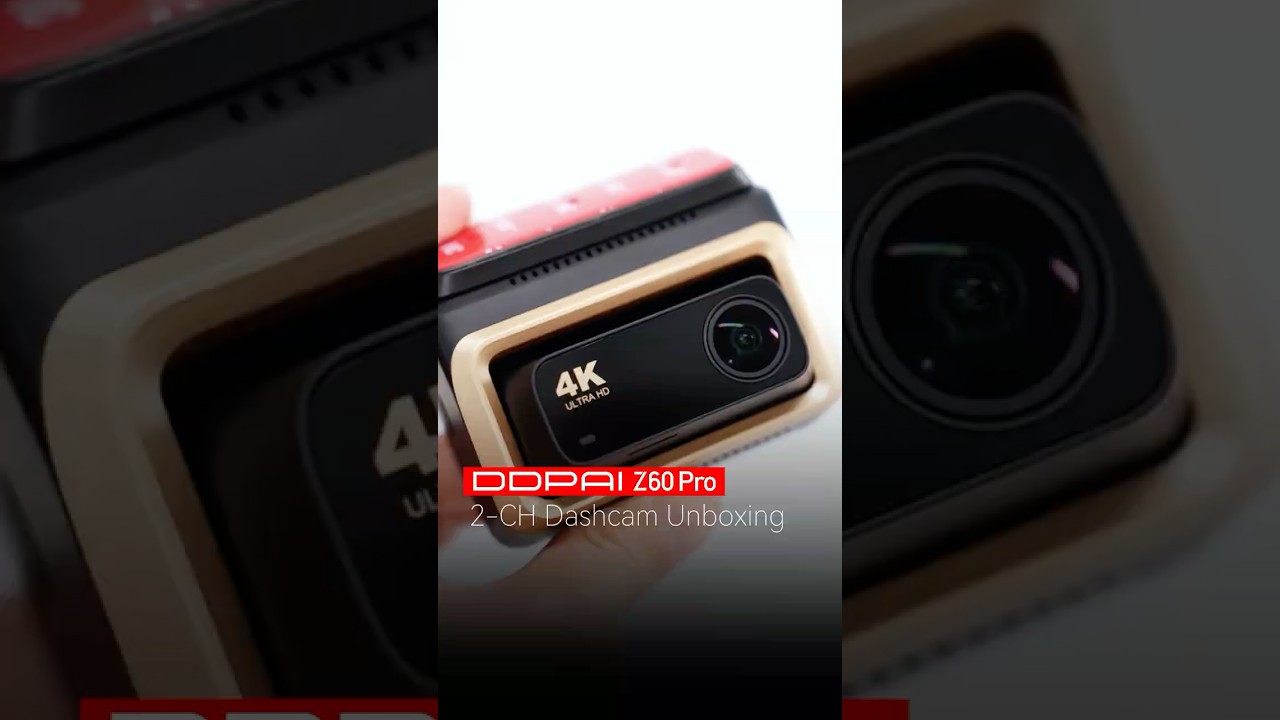
Unboxing Z60 Pro Dashcam - Superior 4K Vision Dashcam with 4G
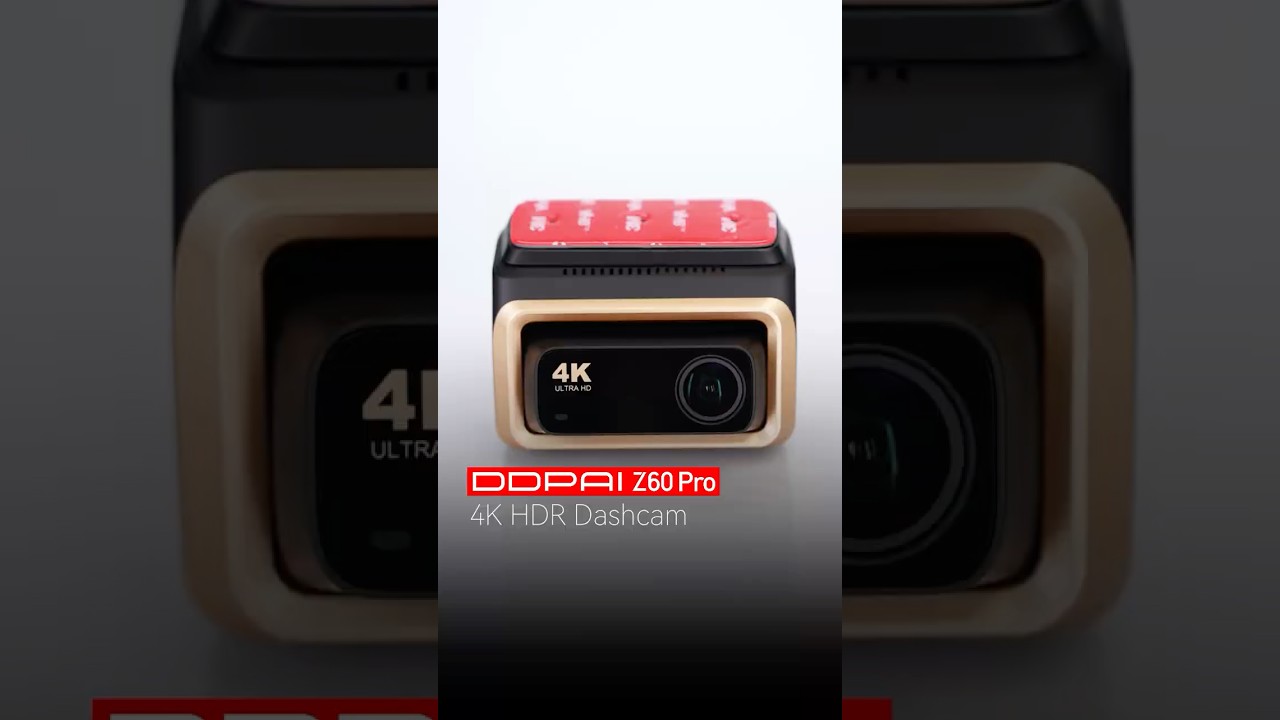
🆕Z60 Pro delivers crisp 4K HDR footage and smooth 3K 60fps for an unbeatable driving experience.
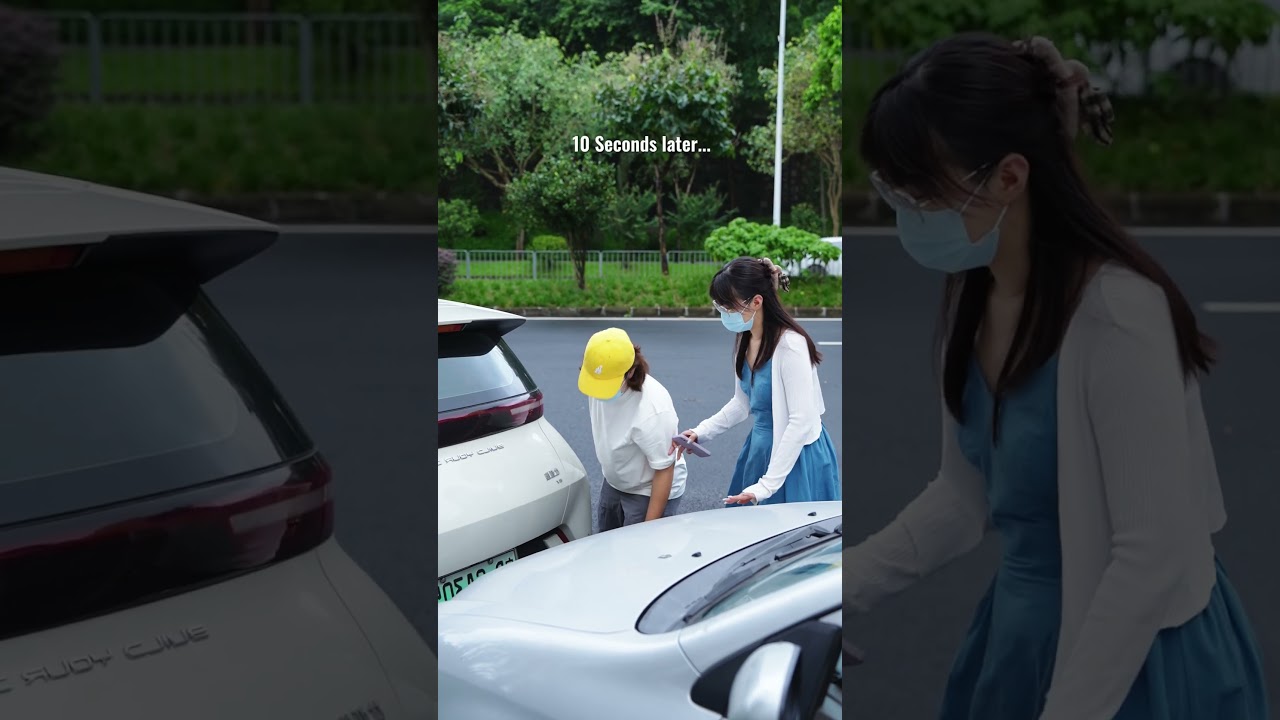
DDPAI Z60 Pro | An instant 4G remote alert, solid video evidence, and nowhere left to hide.
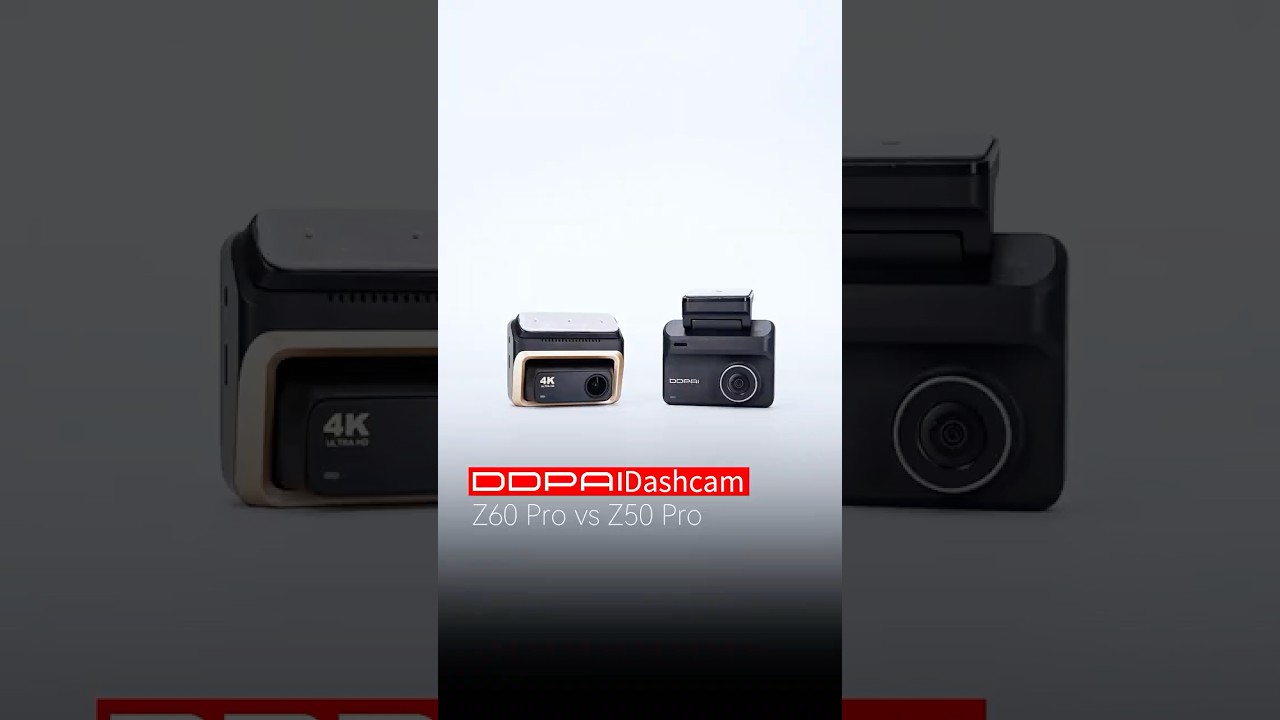
DDPAI Z60 Pro vs. Z50 Pro: premium features vs. best value. Which one is right for you? #DDPAI
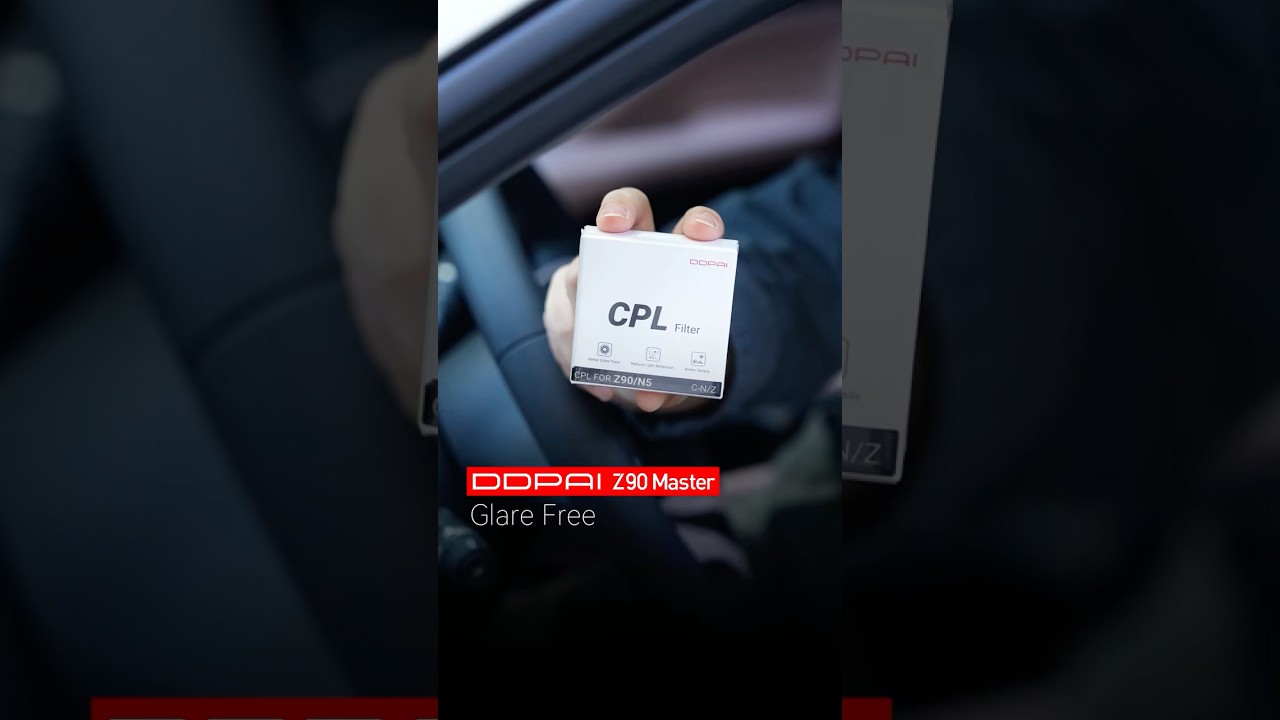
Make Good even Better. Use DDPAI CPL to maximize the reflection-free performance of your Dashcam.
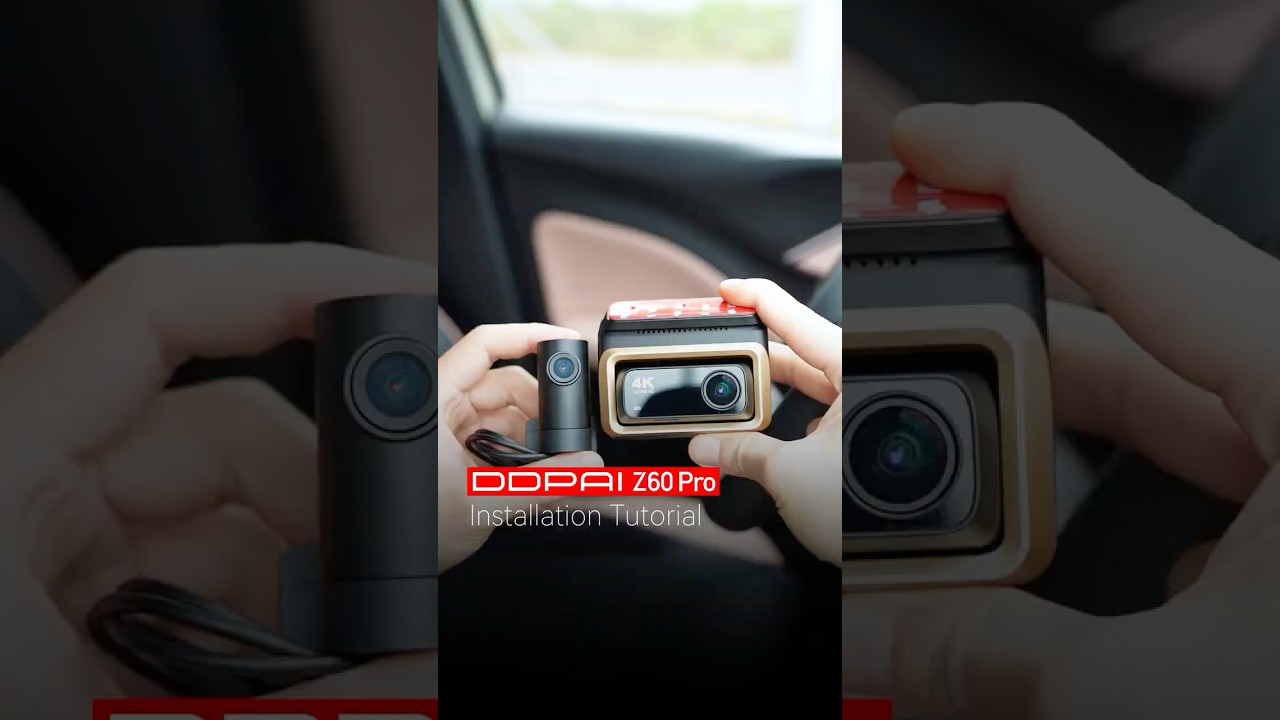
Watch the Z60 Pro installation and see how a dashcam can be both 4K HDR powerful and golden sleek.
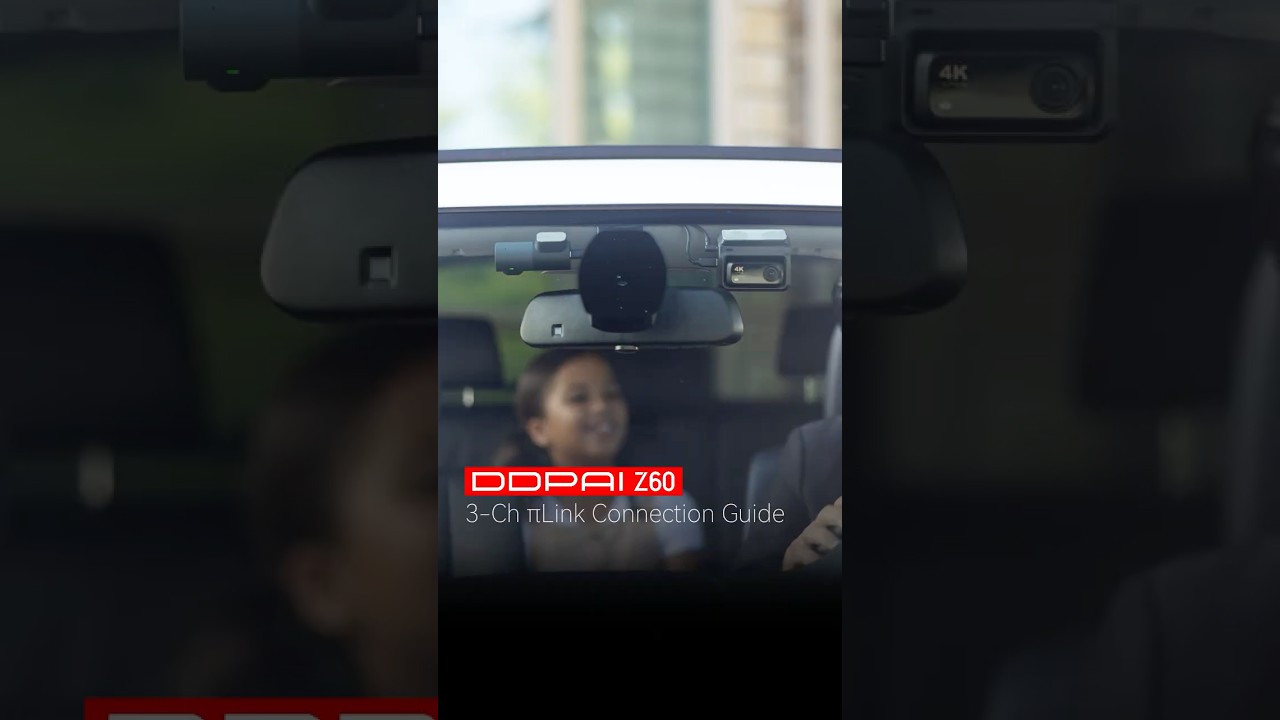
DDPAI Z60 Dashcam 3-Channel Setup Guide: Simple Steps for Perfect Coverage

See Beyond, Drive Beyond.

πLink Multi-Channel System
With πLink, Z60 Pro supports 4K + 1080P dual-channel recording and expands to 3-channel coverage with MINI2X. Sync and view all cameras seamlessly in the DDPAI app.

Dual Sony STARVIS 2 & HDR
Powered by Sony STARVIS 2 IMX678 + IMX662, Z60 Pro delivers 4K front + 1080P rear recording with HDR for clear footage in any lighting.

Upgraded Realcube 2.0 with Dual HDR
Powered by Realcube image tuning, delivering balanced, detailed footage in any lighting condition.

Clearer at High Speed
3K 60fps recording captures fast-moving vehicles with precision, eliminating motion blur and ensuring smooth, detailed playback during high-speed driving.

4G Connected. Always Protected.
Remote live view, collision alerts, geofencing, and cloud backup—all from your phone, anywhere. Because peace of mind shouldn't stop when you walk away.

24/7 Parking Monitoring
Motion-triggered recording, impact detection, and low-power protection—your car stays guarded even when parked. Evidence locked automatically. No worries.

Built to Last
Designed for greater heat resistance and long-term reliability, keeping your dash cam powered and your critical footage protected in demanding conditions.

No Glare, Just Clarity
CPL Filter Reduces reflections and glare from glass, metal, and other shiny surfaces, enhancing overall footage quality.

πLink Multi-Channel System
With πLink, Z60 Pro supports 4K + 1080P dual-channel recording and expands to 3-channel coverage with MINI2X. Sync and view all cameras seamlessly in the DDPAI app.

Dual Sony STARVIS 2 & HDR
Powered by Sony STARVIS 2 IMX678 + IMX662, Z60 Pro delivers 4K front + 1080P rear recording with HDR for clear footage in any lighting.

Upgraded Realcube 2.0 with Dual HDR
Powered by Realcube image tuning, delivering balanced, detailed footage in any lighting condition.

Clearer at High Speed
3K 60fps recording captures fast-moving vehicles with precision, eliminating motion blur and ensuring smooth, detailed playback during high-speed driving.

4G Connected. Always Protected.
Remote live view, collision alerts, geofencing, and cloud backup—all from your phone, anywhere. Because peace of mind shouldn't stop when you walk away.

24/7 Parking Monitoring
Motion-triggered recording, impact detection, and low-power protection—your car stays guarded even when parked. Evidence locked automatically. No worries.

Built to Last
Designed for greater heat resistance and long-term reliability, keeping your dash cam powered and your critical footage protected in demanding conditions.

No Glare, Just Clarity
CPL Filter Reduces reflections and glare from glass, metal, and other shiny surfaces, enhancing overall footage quality.
Built for Every Drive
From everyday drives to unexpected moments, Z60 Pro is built to keep you covered wherever the road takes you, and give you peace of mind on every drive.


Choose Your Z60 Pro Setup
Choose the coverage and connectivity that fit the way you drive—from essential dual-channel recording to full three-channel protection with 4G connectivity.


What's in the Box

Z60 Pro 2CH
1Front Camera
2Rear Camera
3Pry Tool
4Car Charger
53.5m Power Cable
65.5m Rear Camera Extension Cable
7User Guide
83M Adhesive
9Electrostatic Sticker

Z60 Pro 2CH + Hardwire Kit
1Front Camera
2Rear Camera
3Pry Tool
4Car Charger
53.5m Power Cable
65.5m Rear Camera Extension Cable
7User Guide
83M Adhesive
9Electrostatic Sticker
10IPS Intelligent Hardwire Kit

Z60 Pro 2CH 4G
1Front Camera
2Rear Camera
34G Module
4Pry Tool
5Car Charger
63.5m Power Cable
75.5m Rear Camera Extension Cable
8User Guide
93M Adhesive
10Electrostatic Sticker
11IPS Intelligent Hardwire Kit
12SIM Card Ejector Pin
13SIM Card

Z60 Pro 3CH
1Front Camera
2Rear Camera
3MINI2X
4Pry Tool
5Car Charger
63.5m Power Cable
75.5m Rear Camera Extension Cable
8User Guide
93M Adhesive
10Electrostatic Sticker
111 to 2 Adapter Cable
120.3m Power Cable
136m Power Cable
14Installation Guide Card

Z60 Pro 3CH + Hardwire Kit
1Front Camera
2Rear Camera
3MINI2X
4 Pry Tool
5Car Charger
63.5m Power Cable
75.5m Rear Camera Extension Cable
8User Guide
93M Adhesive
10Electrostatic Sticker
11IPS Hardwire Kit
121 to 2 Adapter Cable
130.3m Power Cable
146m Power Cable
15 Installation Guide Card

Z60 Pro 3CH 4G
1Front Camera
2Rear Camera
3MINI2X
44G Module
5IPS Hardwire Kit
6Pry Tool
7Car Charger
83.5m Power Cable
95.5m Rear Camera Extension Cable
10User Guide
113M Adhesive
12Electrostatic Sticker
131 to 2 Adapter Cable
140.3m Power Cable
15 6m Power Cable
16 Installation Guide Card
17SIM Card Ejector Pin
18SIM Card
Which is the Best for You?
${ getProductBriefDescription(values[0]) }
${ getProductPrice(0) }
${ formatMoney(variantsCurrent[0] && variantsCurrent[0].compare_at_price) }
${ getProductBriefDescription(values[1]) }
${ getProductPrice(1) }
${ formatMoney(variantsCurrent[1] && variantsCurrent[1].compare_at_price) }
${ getProductBriefDescription(values[2]) }
${ getProductPrice(2) }
${ formatMoney(variantsCurrent[2] && variantsCurrent[2].compare_at_price) }
General
Camera
Video Resolution
Video Resolution
Video Resolution
HDR
HDR
HDR
Field of View
Field of View
Field of View
Aperture
Aperture
Aperture
Video Encoding
Video Encoding
Video Encoding
Video Format
Video Format
Video Format
IMU
IMU
IMU
Features
4G Connectivity
4G Connectivity
4G Connectivity
Built-in GPS
Built-in GPS
Built-in GPS
APP Control
APP Control
APP Control
Parking Surveillance
Parking Surveillance
Parking Surveillance
Wi-Fi & Bluetooth
Wi-Fi & Bluetooth
Wi-Fi & Bluetooth
Storage
Storage
Storage
Voice Control
Voice Control
Voice Control
GNSS
GNSS
GNSS
ADAS
ADAS
ADAS
General
Product Dimension
Product Dimension
Product Dimension
Weight (Front)
Weight (Front)
Weight (Front)
Display Screen
Display Screen
Display Screen
Display Screen Resolution
Display Screen Resolution
Display Screen Resolution
Others
Microphone
Microphone
Microphone
Speaker
Speaker
Speaker
Supercapacitor
Supercapacitor
Supercapacitor
Operating Temperature
Operating Temperature
Operating Temperature
Storage Temperature
Storage Temperature
Storage Temperature
Power Interface
Power Interface
Power Interface
Check out suitable Cam Parts

 4K + 1080P
4K+1080PRadar Parking Monitoring
N5 Dual 2026
Smarter. Clearer. Always Connected.
 4K Dash Cam

Customer Reviews
Overall rating: 5.0 / 5 from 27 reviews.

Merci beaucoup

For personal reasons, I haven't installed it yet, but at first glance, I like it. Thank you for tracking my item during its transit to my country.

Amazing.Good quality.features and front and rear Cameras result in day and night is awesome.

Great product. Good quality camera

A bit of shimmering and reflections , but overall it captures videos with great quality.

Very quality product and very fast delivery Thanks a lot for customer service They are very helpful.

Very good quality I recommend this dash cam

The product would be better if it was a bit smaller. Also, it would be great if the SIM card could be inserted directly into the device, so there would be no need for a 4G modem. Lastly, if the device had Wi-Fi connectivity, there would be no need for a SIM card either, as it could connect to nearby internet modems where the vehicle is parked.
;)
Amazing camera
Great product, Easy using,
Everythings its ok
A great deal
Quality!!!
Great camera, fast delivery!
zajebista kamera zrobcie jeszce aktualizzcje i bedzie zajebosta
Good product with good image quality
The camera is easy to install, also the shipping was OK.
It arrived in 2 weeks, everything is fine, I'm waiting for the master to install it. Thank you!
Quick night video to show how clear and crisp the video is.
Very nice
Thanks. That's a great 👍
.
ALL good
Amazing surface and fast delivery
Türkiyeden sipariş verdim elime ulaştı herzaman her şekilde cevap alabildim teşekkürler
Very Nice.
Frequently Asked Questions
1.How to format the memory card?
Format the memory card (Method 1): Press the (Settings) button on the home screen of the device, select “Format,” and select to format the SD card.
Format the memory card (Method 2): After the mobile phone successfully connects to the device, enter the “Camera Settings” interface, tap“Storage Management”and select to format the SD card.
Format the memory card (Method 3): Remove the memory card, insert it into the card reader, and connect it to the computer. Find the memory card drive, Right-click and select “Format”.
2. What is the Wi-Fi password of the Dash Cam?
The default Wi-Fi password of the device is “1234567890”. You can change the password, go to “Camera Settings” > “Set WIFI Password” after connecting the APP with your mobile phone.
3. Can I change the Wi-Fi password of the Dash Cam?
It can be modified. The specific modification method is to enter “Device Settings” interface after the Dash Cam is connected to the mobile phone, select “Device Wi-Fi Password” after entering, enter a new password, confirm it, and save it.
4. How do I reset the Dash Cam?
In case of abnormal state, press the function button for approximately 6 seconds to reset the device. After successful reset, the device will automatically restart.
5. What if I forget the Wi-Fi password?
Press the function button for approximately 6 seconds to reset the device, and then connect the Dash Cam again (default password: 1234567890).
6. What should I do if the time is incorrect?
Connect your device to your mobile phone via the DDPAI app, and make sure the app is connected to the camera’s Wi-Fi. The camera will automatically synchronize the phone time through the app.
7. What is AI-ISP?
AI-ISP technology can more accurately identify and analyze the content in the image through massive data learning, training, and understanding, and adjust various parameters of the image according to different scenes and needs, making the image details clearer and the color reproduction more accurate.
Z60 Pro supports AIISP technology. The images captured by the dash cam in the parking monitoring mode at night can also present brightness and color information well, and the effect is close to that of daytime.
8. How to use the SR function?
In the video playback and download interface, you can use the SR switch to select whether to display the SR effect.
9. Why can’t I see the SR effect?
① First check whether the device is successfully positioned.
② After the positioning is successful, the app will be connected for a few minutes and then download the video to have the SR effect. If there is no SR effect, please contact customer service.
10. Cannot use the remote viewing function?
① Please make sure that the device is operating normally and the 4G network is available. After the 4G-cloud box is correctly connected to the dash cam, when the dash cam is powered on, it broadcasts “4G network connected” to indicate that the 4G network is available.
② Please make sure that the mobile phone wireless network or data network can access the Internet.
11. When using the remote viewing function, the screen prompts “Retry”?
It may be caused by the poor 4G signal in the surrounding environment. Please move to a location with a strong signal and try again.
Show More