









112
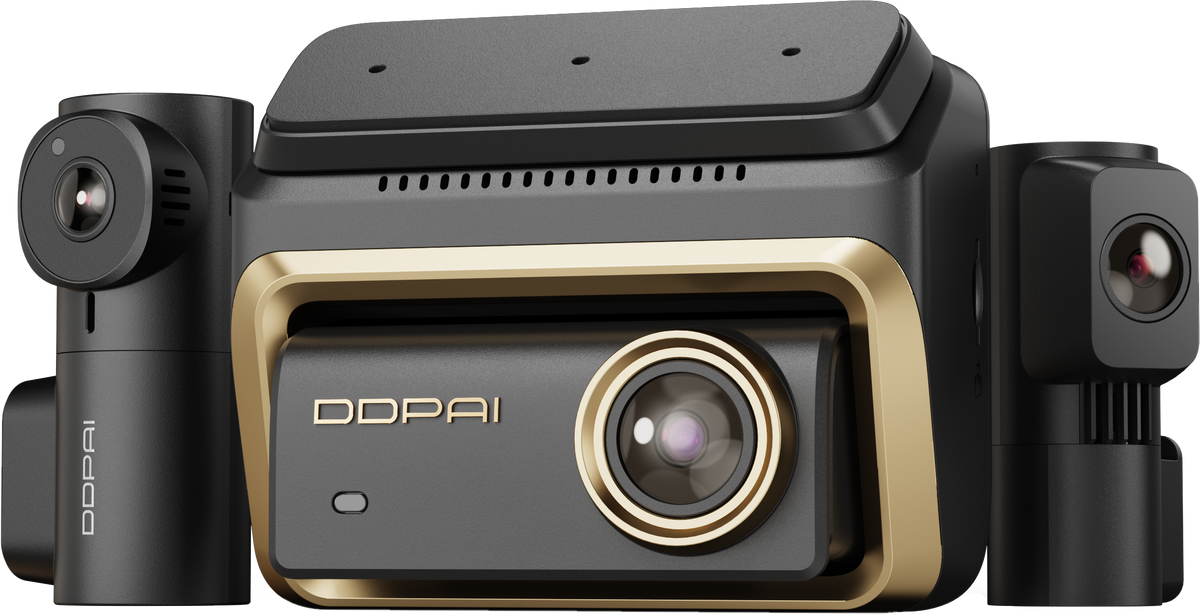
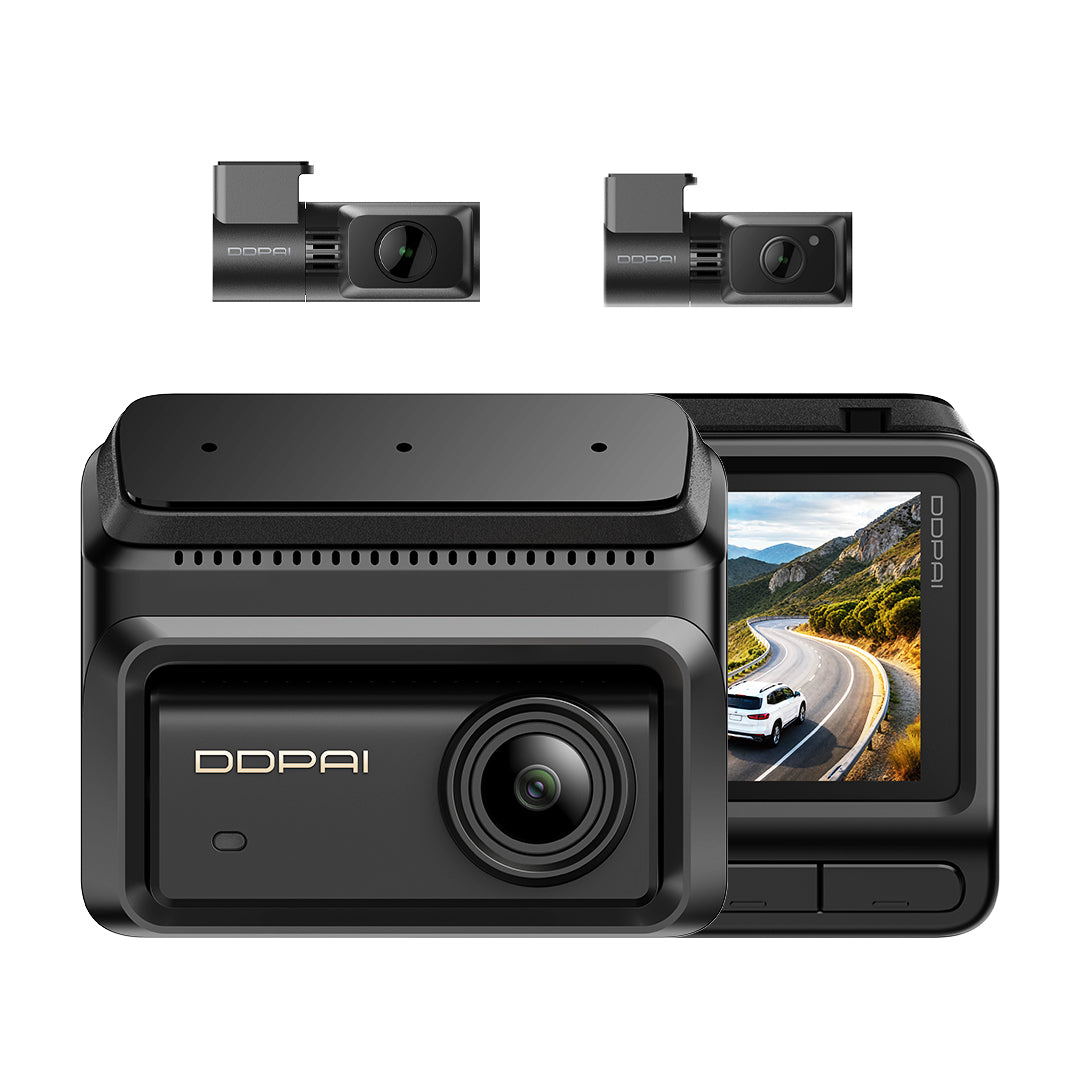
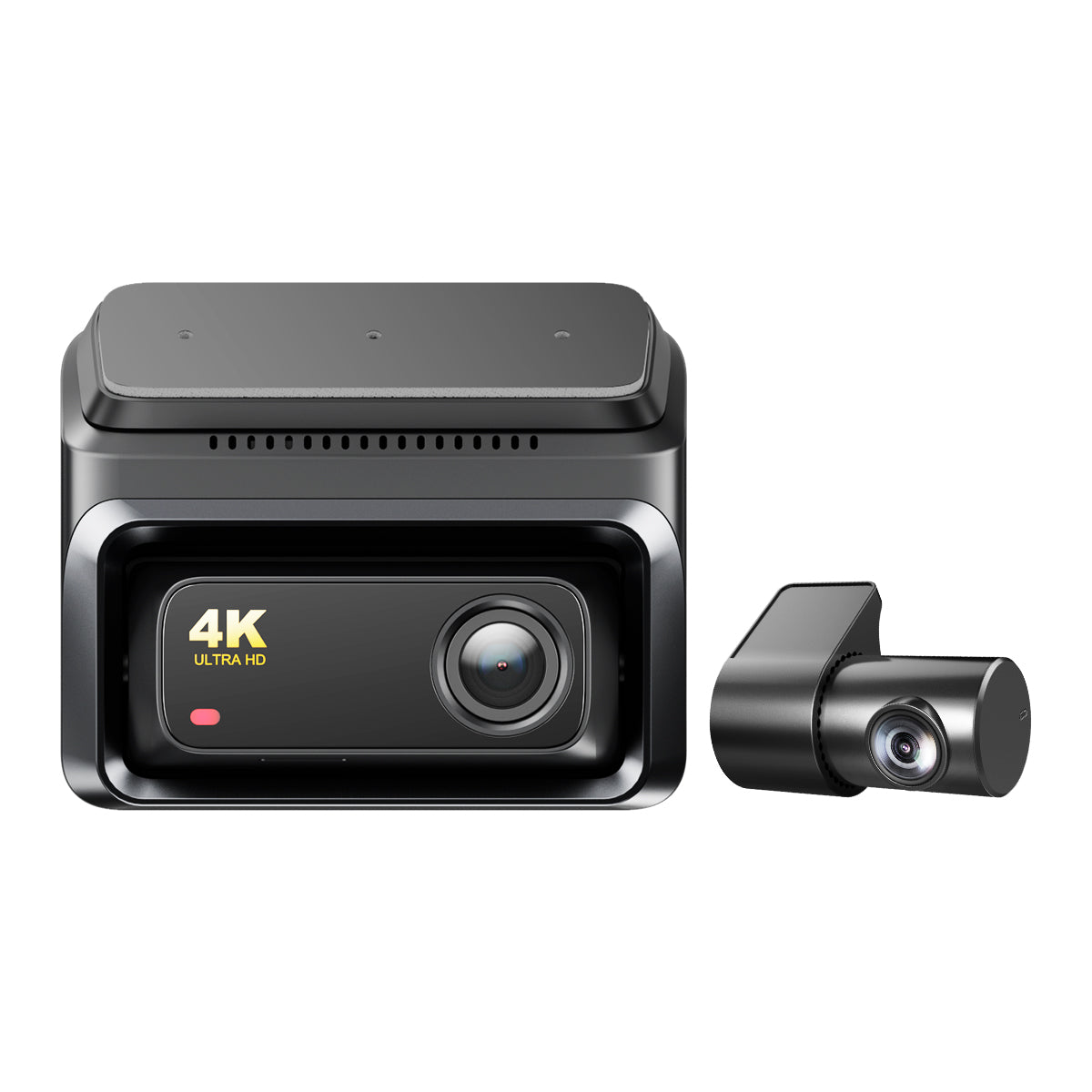
Z90 Master
Key Features
Aspectos destacados del producto 1
Aspectos destacados del producto Aspectos destacados del producto
Aspectos destacados del producto 2
Aspectos destacados del producto Aspectos destacados del producto人 22
Aspectos destacados del producto Aspectos destacados del producto
Select Your Complimentary Gifts

Adhesivo 3M y pegatina electrostática para cámara frontal — Para Z50 Pro
Precio de oferta$5.99

Caja en la nube 4G — Caja en la nube 4G
Precio de oferta$99.00
Precio normal$139.00


Z90 Master
Precio de oferta$299.00
Precio normal$399.00
See It in Action
Unboxing
Features
Installation
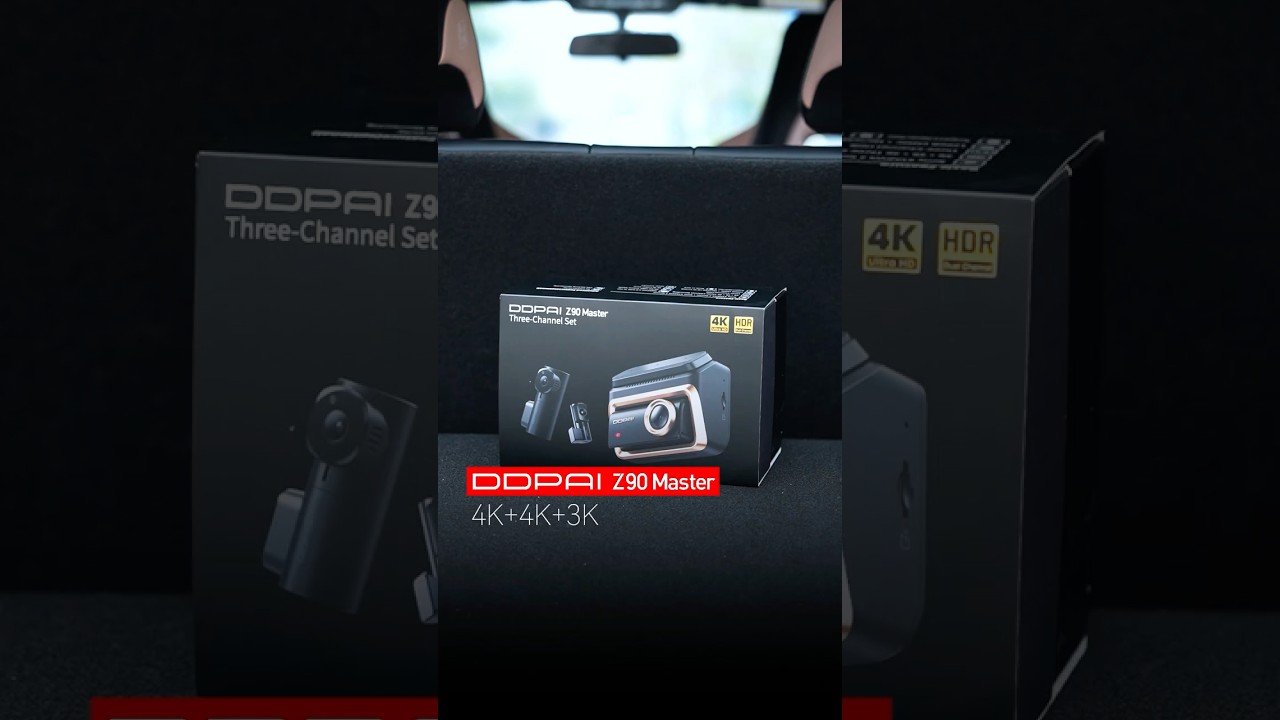
DDPAI Z90 Master pioneers 4K + 4K + 3K Digital Clarity. Powered by Dual Sony sensors and Triple HDR
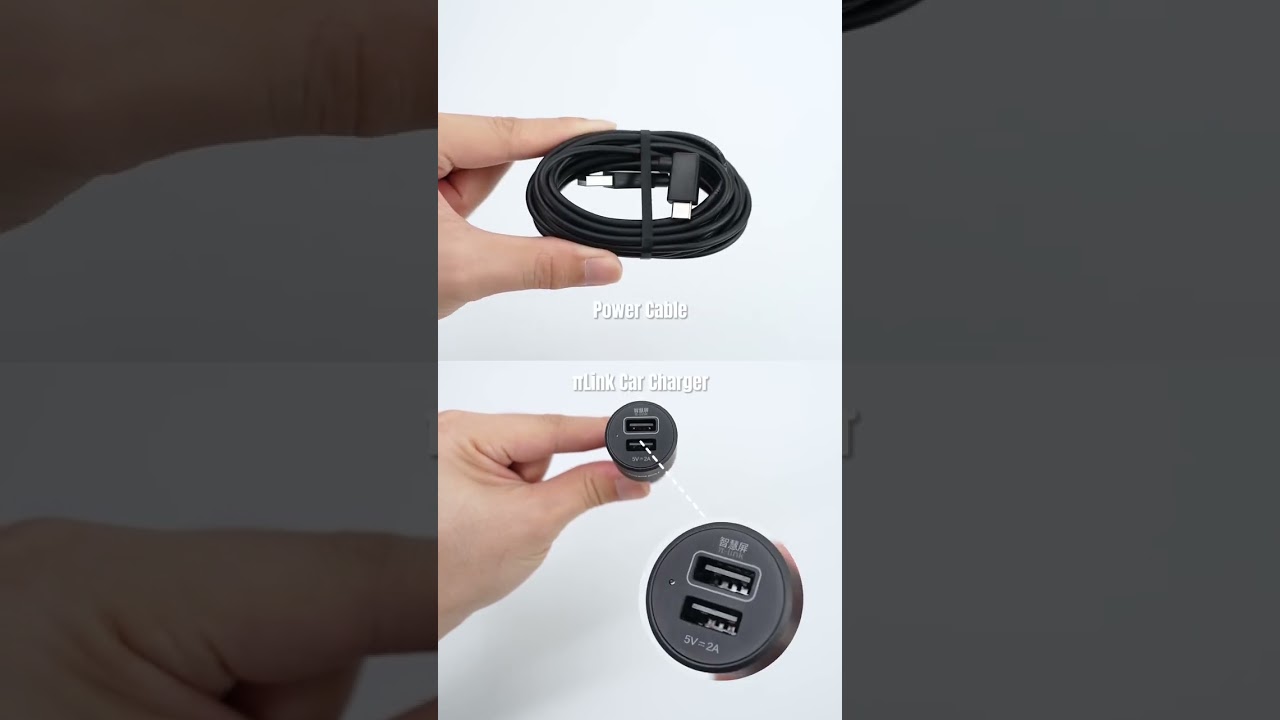
Unboxing the Z90 Master 3CH Edition.
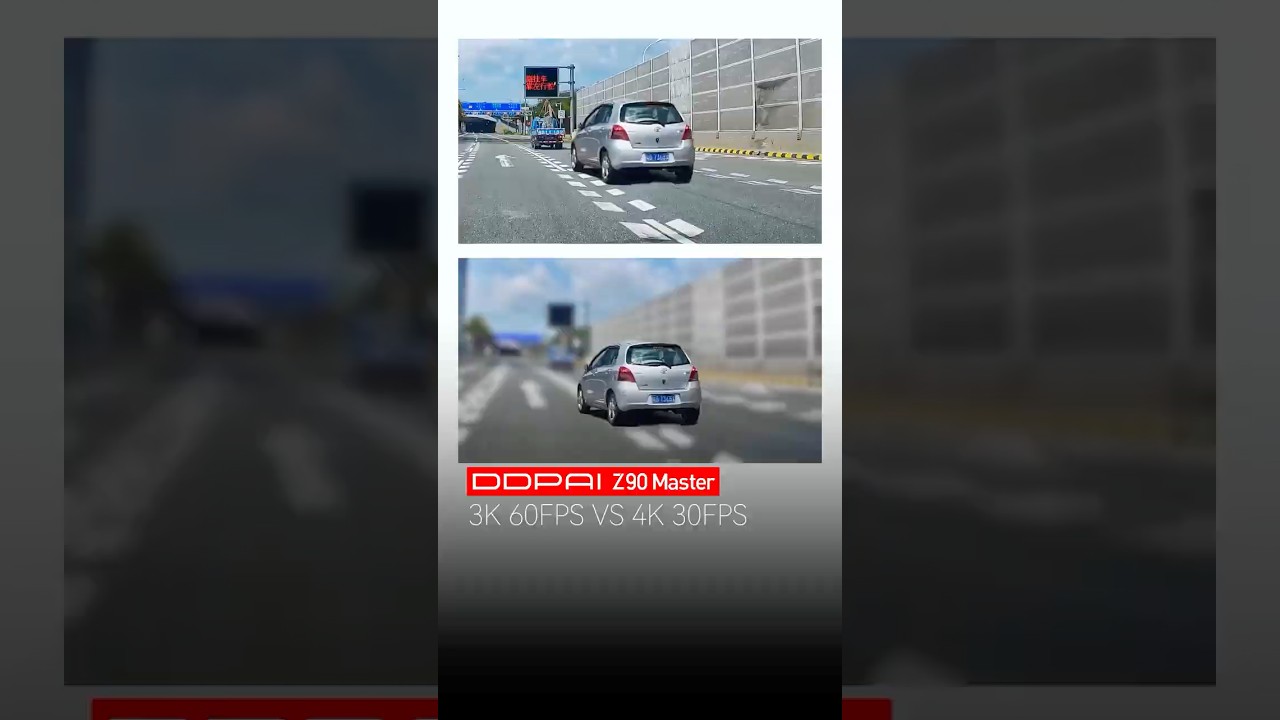
Watch how the DDPAI Z90 Master handles 4K/30 and 3K/60 in action.
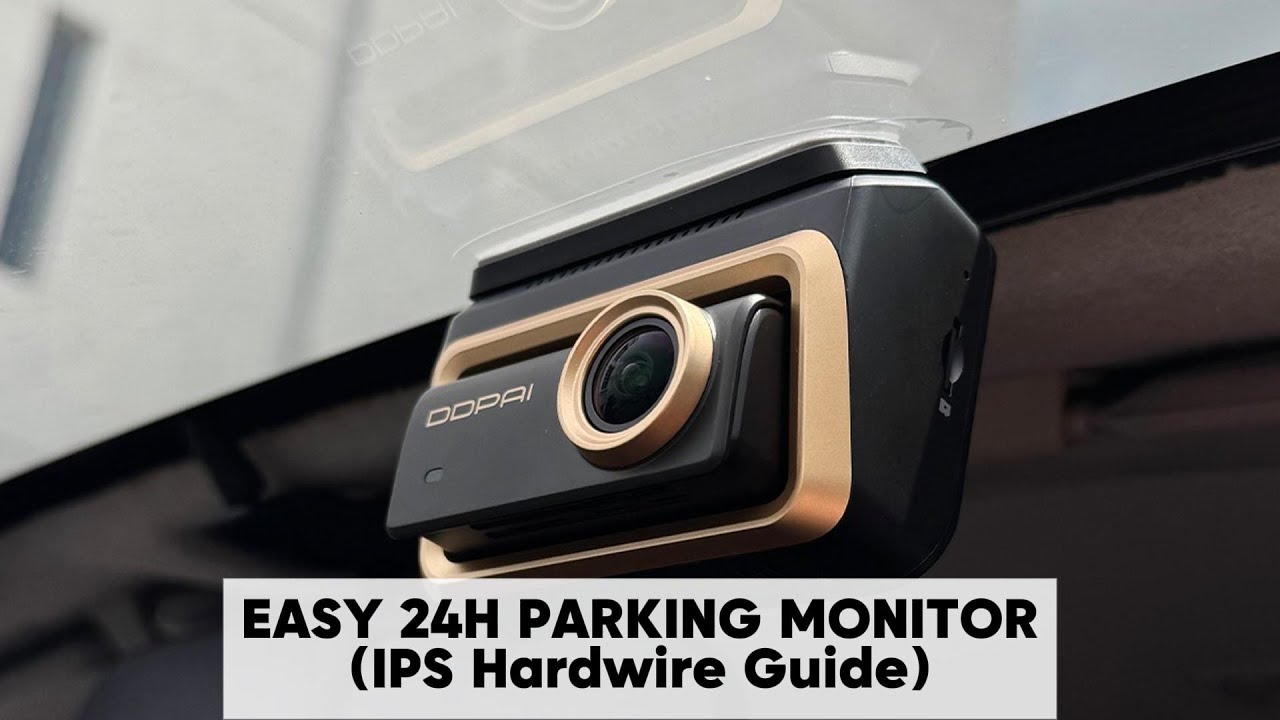
DDPAI 24H Parking Mode Fuse Box or OBD Power? (Full Install Guide)
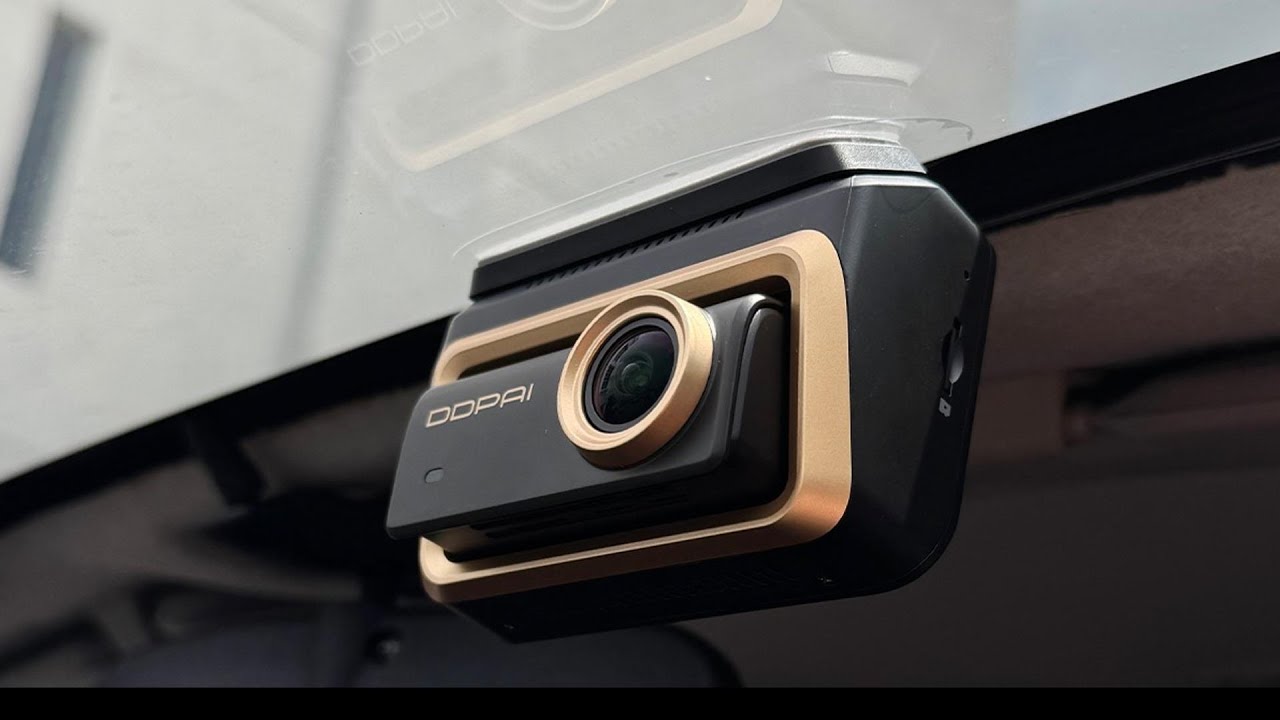
DDPAI Z90 Master / Z90 Series Dashcam Official Installation Guide (Step-by-Step DIY Setup)
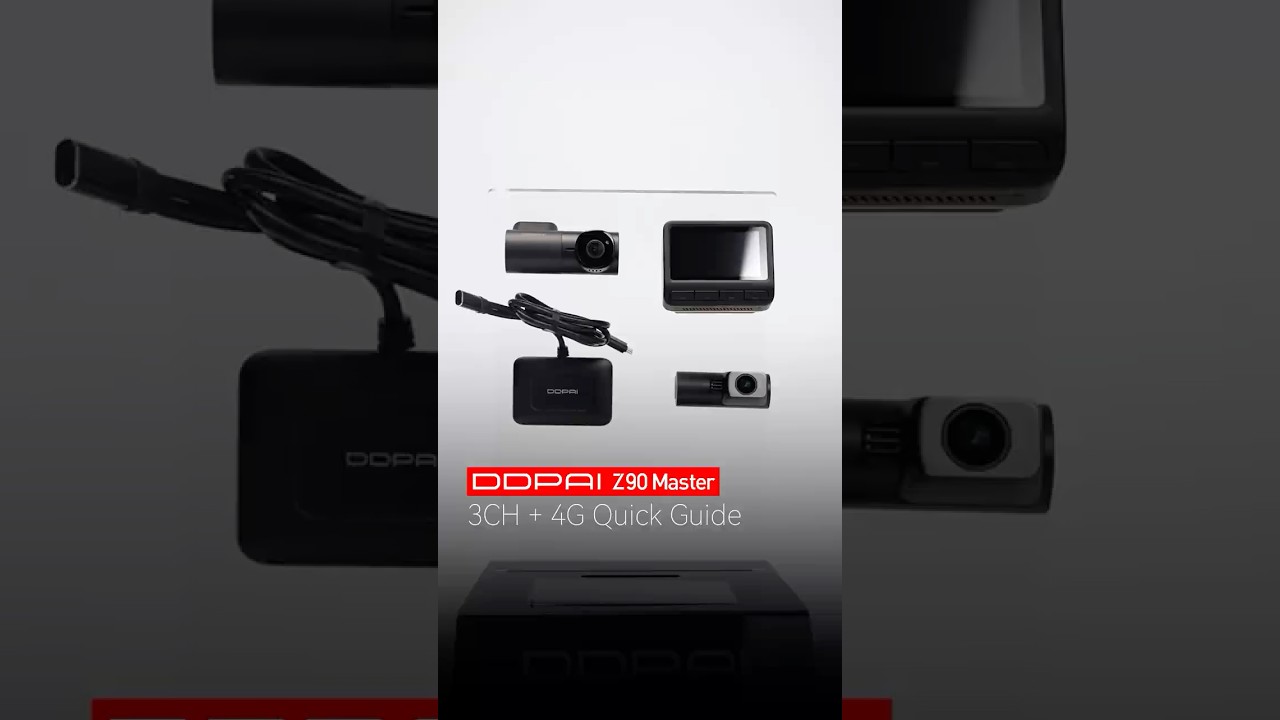
DDPAI Z90 Master | A quick demonstration on how to connect your ultimate 3-channel setup & 4G Module

Flagship Triple Vision. Full Digital Clarity.
Watch Video


Total Coverage in 4K+4K+3K
Industry-leading 4K front, 4K rear, and 3K cabin setup. Captures every angle in crystal-clear detail, day and night.

Dual Sony IMX678 & Triple HDR
Capture sharp, balanced footage across every channel, day or night, so critical details stay clear when you need them most.

Worry-Free Recording
With 64GB built-in eMMC storage and support for up to 512GB microSD expansion, the Z90 Master gives you all the space you need.

AI Portrait & IR Interior Camera
3K HDR balances light for natural skin tones. Dual IR lights keep every seat visible at night. Clear footage, complete cabin coverage—protection for every ride.

4G Connected. Always Protected.
Remote live view, collision alerts, geofencing, and cloud backup—all from your phone, anywhere. Because peace of mind shouldn't stop when you walk away.

24/7 Parking Monitoring
Motion-triggered recording, impact detection, and low-power protection—your car stays guarded even when parked. Evidence locked automatically. No worries.

Built to Last
Designed for greater heat resistance and long-term reliability, keeping your dash cam powered and your critical footage protected in demanding conditions.

No Glare, Just Clarity
CPL Filter Reduces reflections and glare from glass, metal, and other shiny surfaces, enhancing overall footage quality.

Total Coverage in 4K+4K+3K
Industry-leading 4K front, 4K rear, and 3K cabin setup. Captures every angle in crystal-clear detail, day and night.

Dual Sony IMX678 & Triple HDR
Capture sharp, balanced footage across every channel, day or night, so critical details stay clear when you need them most.

Worry-Free Recording
With 64GB built-in eMMC storage and support for up to 512GB microSD expansion, the Z90 Master gives you all the space you need.

AI Portrait & IR Interior Camera
3K HDR balances light for natural skin tones. Dual IR lights keep every seat visible at night. Clear footage, complete cabin coverage—protection for every ride.

4G Connected. Always Protected.
Remote live view, collision alerts, geofencing, and cloud backup—all from your phone, anywhere. Because peace of mind shouldn't stop when you walk away.

24/7 Parking Monitoring
Motion-triggered recording, impact detection, and low-power protection—your car stays guarded even when parked. Evidence locked automatically. No worries.

Built to Last
Designed for greater heat resistance and long-term reliability, keeping your dash cam powered and your critical footage protected in demanding conditions.

No Glare, Just Clarity
CPL Filter Reduces reflections and glare from glass, metal, and other shiny surfaces, enhancing overall footage quality.
Built for Every Drive
From everyday drives to unexpected moments, Z90 Master is built to keep you covered wherever the road takes you, and give you peace of mind on every drive.


Choose Your Z90 Master Setup
Choose the coverage and connectivity that fit the way you drive—from essential dual-channel recording to full three-channel protection with 4G connectivity.


What's in the Box

Z90 Master 2CH
1Front Camera
2Rear Camera
3CPL Filter
4Pry Tool
5Car Charger
63.5m Power Cable
76m Rear Camera Extension Cable
8User Guide
93M Adhesive
10Electrostatic Sticker

Z90 Master 2CH + Hardwire Kit
1Front Camera
2Rear Camera
3CPL Filter
4Pry Tool
56m Rear Camera Extension Cable
6User Guide
73M Adhesive
8Electrostatic Sticker
9IPS Hardwire Kit

Z90 Master 2CH 4G
1Front Camera
2Rear Camera
3CPL Filter
4Pry Tool
56m Rear Camera Extension Cable
6User Guide
73M Adhesive
8Electrostatic Sticker
9IPS Hardwire Kit
104G Module

Z90 Master 3CH
1Front Camera
2Interior Camera
3Rear Camera
4CPL Filter
5Pry Tool
6Car Charger
73.5m Power Cable
86m Rear Camera Extension Cable
9User Guide
103M Adhesive
11Electrostatic Sticker
121-to-2 Adapter Cable

Z90 Master 3CH + Hardwire Kit
1Front Camera
2Interior Camera
3Rear Camera
4CPL Filter
5Pry Tool
66m Rear Camera Extension Cable
7User Guide
83M Adhesive
9Electrostatic Sticker
101-to-2 Adapter Cable
11IPS Hardwire Kit

Z90 Master 3CH 4G
1Front Camera
2Interior Camera
3Rear Camera
4CPL Filter
5Pry Tool
66m Rear Camera Extension Cable
7User Guide
83M Adhesive
9Electrostatic Sticker
101-to-2 Adapter Cable
11IPS Hardwire Kit
124G Module
Which is the Best for You?
${ getProductBriefDescription(values[0]) }
${ getProductPrice(0) }
${ formatMoney(variantsCurrent[0] && variantsCurrent[0].compare_at_price) }
${ getProductBriefDescription(values[1]) }
${ getProductPrice(1) }
${ formatMoney(variantsCurrent[1] && variantsCurrent[1].compare_at_price) }
${ getProductBriefDescription(values[2]) }
${ getProductPrice(2) }
${ formatMoney(variantsCurrent[2] && variantsCurrent[2].compare_at_price) }
General
Cámara
Resolución de video
HDR
Campo de visión
Apertura
Codificación de video
Formato de video
IMU
Características
Conectividad 4G
GPS integrado
Control mediante la aplicación
Vigilancia durante el estacionamiento
Wi-Fi y Bluetooth
Almacenamiento
Control por voz
GNSS
ADAS
General
Dimensiones del producto
Peso (parte frontal)
Pantalla
Resolución de pantalla
Otros
Micrófono
Altavoz
Supercondensador
Temperatura de funcionamiento
Temperatura de almacenamiento
Interfaz de alimentación
Check out suitable Cam Parts


Customer Reviews
Overall rating: 4.9 / 5 from 82 reviews.

Thanks very clear and easy to use

Beautiful packaging and an amazing bundle! Everything is neatly presented, with an itemized list of what’s included in the box. They even included a wireless remote button and a car fragrance diffuser—such a lovely surprise! I haven’t installed the cameras yet, but the first impression is excellent. Thank you, DDPAI, for the thoughtful gifts and attention to detail!🙏🏻🤗👍🏻✨✌🏻🫶🏻

Very quick shipping and received all products as expected

So glad to be member of ddpai

Amazing video quality on the front cam. Haven't installed the interior and rear view cams yet.

I received the product. They also included a coffee thermos cup, a fragrance kit, and a cleaning cloth inside. Thank you so much for your thoughtfulness and kindness. I was expecting the 128 GB version, but I received the 64 GB version instead. That’s okay, I can simply get a memory card. The packaging was very secure, and there wasn’t even the slightest damage or dent on the package. I’m already sure that I will be very satisfied with the product. Thank you very much in advance!

This is Amazing dash cam! I recommend Z90 Master!

Clear video and no blurr at low light environment

I’ve been using the DDPAI Z90 Master for a while now and I absolutely love it! The video quality is incredibly sharp, both day and night, and the app is smooth and easy to use. It gives me real peace of mind every time I drive. Definitely one of the best upgrades I’ve made to my car. Highly recommend it to anyone looking for a reliable, high-quality dash cam!

Loving the clarity even at night time. Excellent product. Thank you DDPAI.

Outstanding performance and superb quality! I'm very impressed with this product and hope it lasts for many years. Thank you, DDPAI!

Super produkt. Ale w zestawie nie było karty Sim do modułu 4G 😔. W innych sklepach produkt ma 128GB pamięci wewnętrznej a tu tylko 64GB.

I ordered the Z90 Master 3Channel but i only received 2 cameras.. i reached out to the customer service, asked a few questions and the resolved the problem really well..theyve sent me the missing one.. Great job..im gonna install it now and see what seperates them from other brand.

Very satisfied

Very nice

perfect! i want to add video of z90 install on my car. but I don't success.

Easy to use and all necessary accessories are available.

The best product as usual!!!

User friendly, easy to control

بصراحه سرعه التوصيل منتج جميل جدا بدون مجامله انصح في

Fast delivery.

The Z90 Master has very clear video quality, both day and night. The 3-channel setup works perfectly, and the app is easy to use. I also like the design, the stabilization, and how fast it connects to my phone. For the price, it’s one of the best dash cams I’ve used. Highly recommended if you want a reliable 3-channel dash cam.

Excellent
DDPAI Z90 3CH – A Great Investment for Peace of Mind I’m very pleased with my purchase of the DDPAI Z90 3CH dashcam. One of the main reasons I chose this model was its three-channel recording system, which provides coverage of the front, rear, and interior of the vehicle. Having all three views recorded in one system is a great advantage and gives me additional peace of mind on the road. It’s a practical choice for everyday driving, longer journeys, and keeping an extra record of what happens around the vehicle. I also appreciate the sleek design and the convenience of having a complete dashcam setup rather than relying on a front camera alone. Overall, I’m happy with my purchase and believe the DDPAI Z90 3CH is worth considering for anyone looking for comprehensive vehicle recording and added peace of mind. I would recommend it to other drivers looking for a three-channel dashcam system.
I love it because of the 4k resolution and the 3ch, the best dashcam so far 🥰
Good quality, everything works as intended. Fast shipping.
I've used 2 other ddpai cameras ( same model one for front and other for rear) for the last 7 years across 3 vehicles. I've never had an issue with either of them. They still work, will transfer them to other vehicles. Just upgraded to the Z90 Master 3ch 4g and everything is working great!
I wanted the best quality in the main camera, and the Z90 Master offers just that. I'm not entirely convinced about the connection method for the 3-channel set, especially the GSM module. It creates a considerable cable mess. There's sometimes USB-C, sometimes USB-A. It's a shame that the Z series doesn't have the internal camera integrated with the main camera like the N series. This definitely appeals to me more.
ممتاز
bery bad assembly instructions.
nice camera,
Very good quality 👍
Thank alot for this company
Is 2.º set i buy. It’s work perfect like the 1.º. Many thanks
Great shipping , fast delivery
This is great dashcam how can i but it always working
Great overall dash cam! Both hardware and software nailed it..👌🤙
Works well so far
Perfect
Seu good
Frequently Asked Questions
1. What kind of sd card should i use with the DDPAI dash cam?
We recommend using a U3 or higher specification memory card. The recommended brands are: DDPAI, Kingston, Samsung, Toshiba, and Lexar.
2. How to format the storage card/internal storage?
Format the memory card (Method 1): Press the (Settings) button on the home screen of the device, select “Format,” and select to format the SD card or internal storage.
Format the memory card (Method 2): After the mobile phone successfully connects to the device, enter the “Camera Settings” interface, tap“Storage Management”and select to format the SD card or internal storage.
Format the memory card (Method 3): Remove the memory card, insert it into the card reader, and connect it to the computer. Find the memory card drive, Right-click and select “Format”.
3. What is the Wi-Fi password of the Dash Cam?
The default Wi-Fi password of the device is “1234567890”. You can change the password, go to “Camera Settings” > “Set WIFI Password” after connecting the APP with your mobile phone.
4. Can I change the Wi-Fi password of the Dash Cam?
It can be modified. The specific modification method is to enter “Device Settings” interface after the Dash Cam is connected to the mobile phone, select “Device Wi-Fi Password” after entering, enter a new password, confirm it, and save it.
5. How do I reset the Dash Cam?
In case of abnormal state, press the function button for approximately 6 seconds to reset the device. After successful reset, the device will automatically restart.
6. What if I forget the Wi-Fi password?
Press the function button for approximately 6 seconds to reset the device, and then connect the Dash Cam again (default password: 1234567890).
7. What should I do if the time is incorrect?
Connect your device to your mobile phone via the DDPAI app, and make sure the app is connected to the camera’s Wi-Fi. The camera will automatically synchronize the phone time through the app.
8. What is AI-ISP?
AI-ISP technology can more accurately identify and analyze the content in the image through massive data learning, training, and understanding, and adjust various parameters of the image according to different scenes and needs, making the image details clearer and the color reproduction more accurate.
9. How to use the SR function?
In the video playback and download interface, you can use the SR switch to select whether to display the SR effect.
10. Why can’t I see the SR effect?
① First check whether the device is successfully positioned.
② After the positioning is successful, the app will be connected for a few minutes and then download the video to have the SR effect. If there is no SR effect, please contact customer service.
11. Why does the MINI3X produce a purplish glare in the interior image during daytime recording?
This is caused by stray light entering the lens when sunlight hits it at a specific angle due to certain installation environments. You can resolve this issue by adjusting the installation position. Please install the internal device (MINI3X) as close to the roof headliner as possible.
Show More